

Conversation View
The Conversation View displays the main list of all conversations in your workspace. From this view, you can switch between different conversation categories to quickly understand the state of incoming, ongoing, and assigned chats.
This view helps agents prioritize work, identify unassigned conversations, and monitor conversations that require attention.
Preset Views
Preset views are system-provided categories designed to help you quickly access common conversation states.
All Conversation
Displays all conversations in the workspace, across all statuses, whether they are assigned to an agent or not.

All Open and Unassigned Conversations
Shows conversations that are currently Open and have not yet been assigned to any agent. This view helps agents identify conversations that still need ownership.

My Open Conversations
Lists all Open conversations that are currently assigned to you, allowing you to focus on conversations you are responsible for.

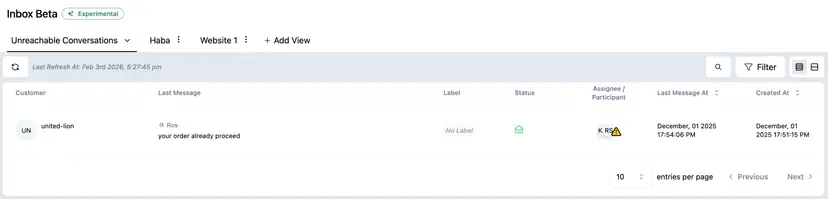
Unreachable Conversations
Displays conversations that the assigned agent can no longer access due to workspace access or permission changes. This can occur, for example, when an agent is removed from the workspace or when a web widget channel is changed from public to private and the agent is not included in the permitted agents list.
Custom Views
Custom Views allow you to adjust the conversation list to match your workflow. You can filter conversations based on criteria such as web widget, date range, and conversation status. Each custom view can be renamed or deleted at any time, making it easier to stay organized and focus on the conversations that matter most.
How to Create a Custom View
To create a custom view:
-
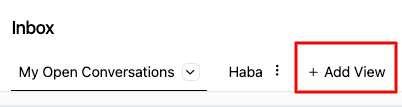
Click Add View.
-
A new view will be created with all conversations shown by default.

-
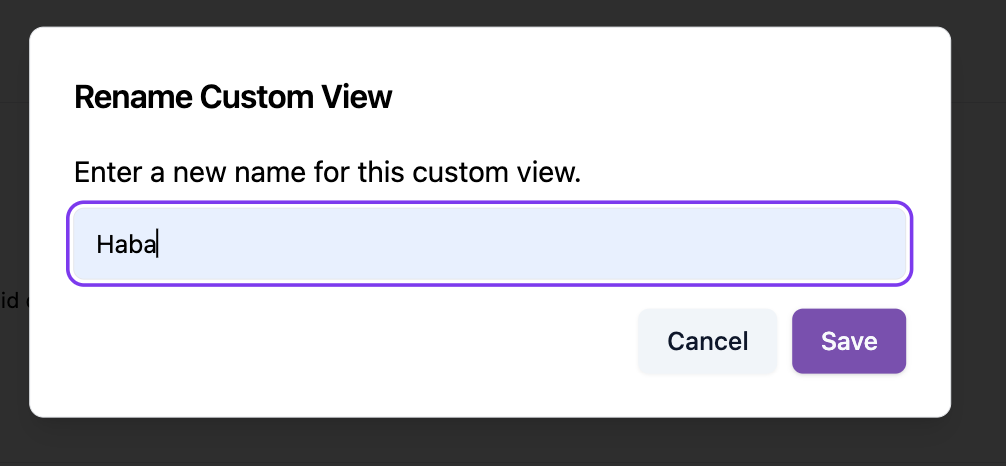
Rename the view to reflect its purpose.
-
Apply filters such as web widget name, date range, or conversation status. The conversation list will update based on the selected filters.

-
After choosing the filters, make sure to save the filter settings. Once saved, your custom view is ready to use.
Every time you log in and open the Inbox, the filters saved in this custom view will remain the same, allowing you to consistently see the conversations based on your defined criteria.
