

Inbox Actions
Inbox actions allow you to manage and explore conversations directly from the Inbox list.
Below are the detailed explanations of each action available in the Inbox.
Search
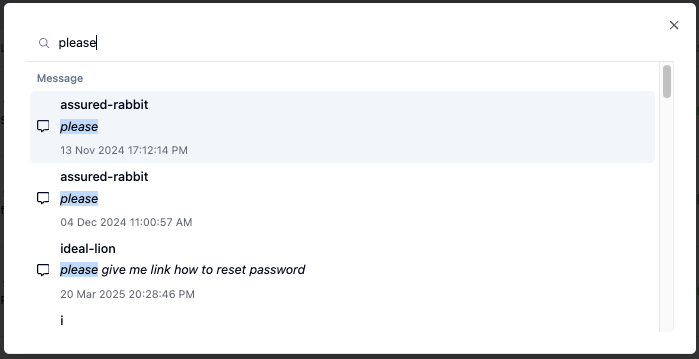
The Search feature allows you to quickly find conversations by searching for specific message content. This is useful when you need to locate a past conversation or track a specific topic mentioned by a customer.
To start searching, click the magnifying glass icon in the top-right corner of the Inbox table. After clicking the icon, the system will display a modal with a search field. You can enter the keyword you want to search for.

Filter
Filters help you narrow down conversations in the Inbox based on specific criteria. In the Askyura Inbox, several filters are available to help you focus on the conversations that matter most.
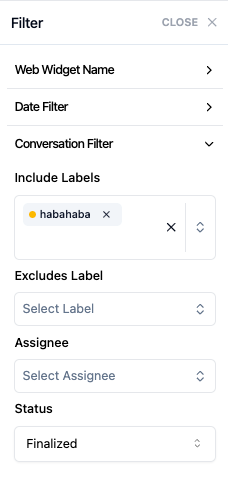
To use filters, click the Filter option in the top-right corner of the Inbox table. The system will open a filter panel where you can choose the filters you want to apply.

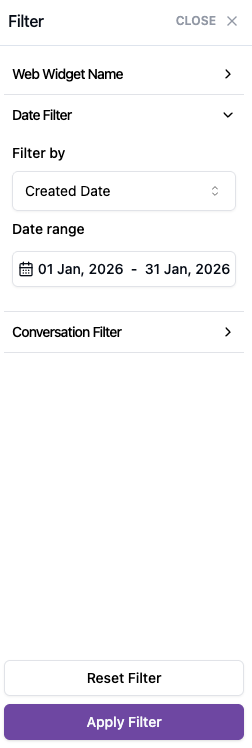
After selecting the filters, click Apply Filter. The conversation list will then update to show only conversations that match your criteria.
The following sections explain each filter available in the Askyura Inbox in more detail.
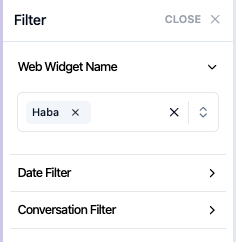
Web Widget Filter
This filter allows you to select a specific web widget, so you can view only conversations that originated from the chosen widget.
Date Filter
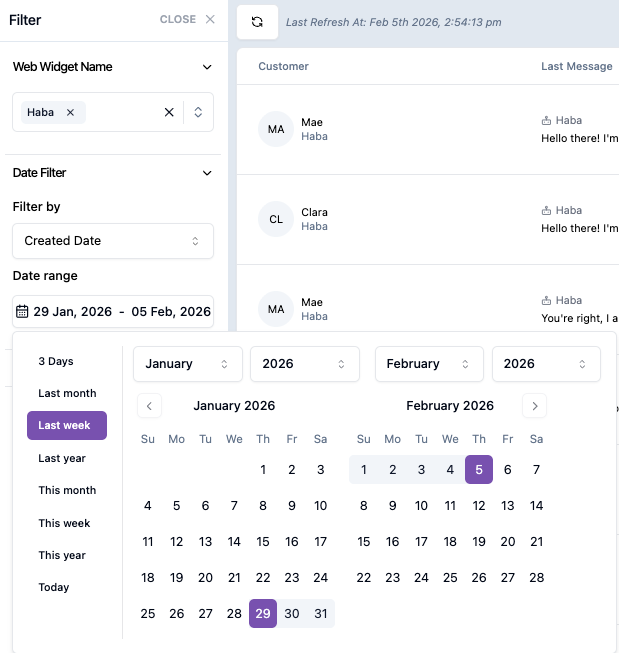
You can filter conversations using two date options, Created Date or Last Message Time. After selecting the date type, you can define a date range to narrow down the results.
Conversation Filter
The Conversation Filter helps you further refine conversations using conversation-specific criteria, including:
- Include Labels
- Exclude Labels
- Assignee
- Chat Status
View Display Options
You can control how conversations appear in the list by choosing between two display modes: Expanded and Compact.
Expanded
Displays conversations in larger rows, making longer messages easier to preview directly from the list.

Compact
Displays conversations in smaller rows, allowing you to see more conversations at once.

Simulate Chat with Bot

Simulate Chat with Bot allows agents to test AI responses using the context of an existing conversation before continuing the chat with the customer. For detailed steps and use cases, see the Simulate Chat with Bot
