Notification Preferences
Notification Preferences allow you to control how and when you receive alerts for activity in Askyura. You can configure real-time sound, desktop, and web alert notifications, as well as choose which events trigger email or in-app notifications — ensuring you stay informed through the channels that best fit your workflow.
Style & Behavior
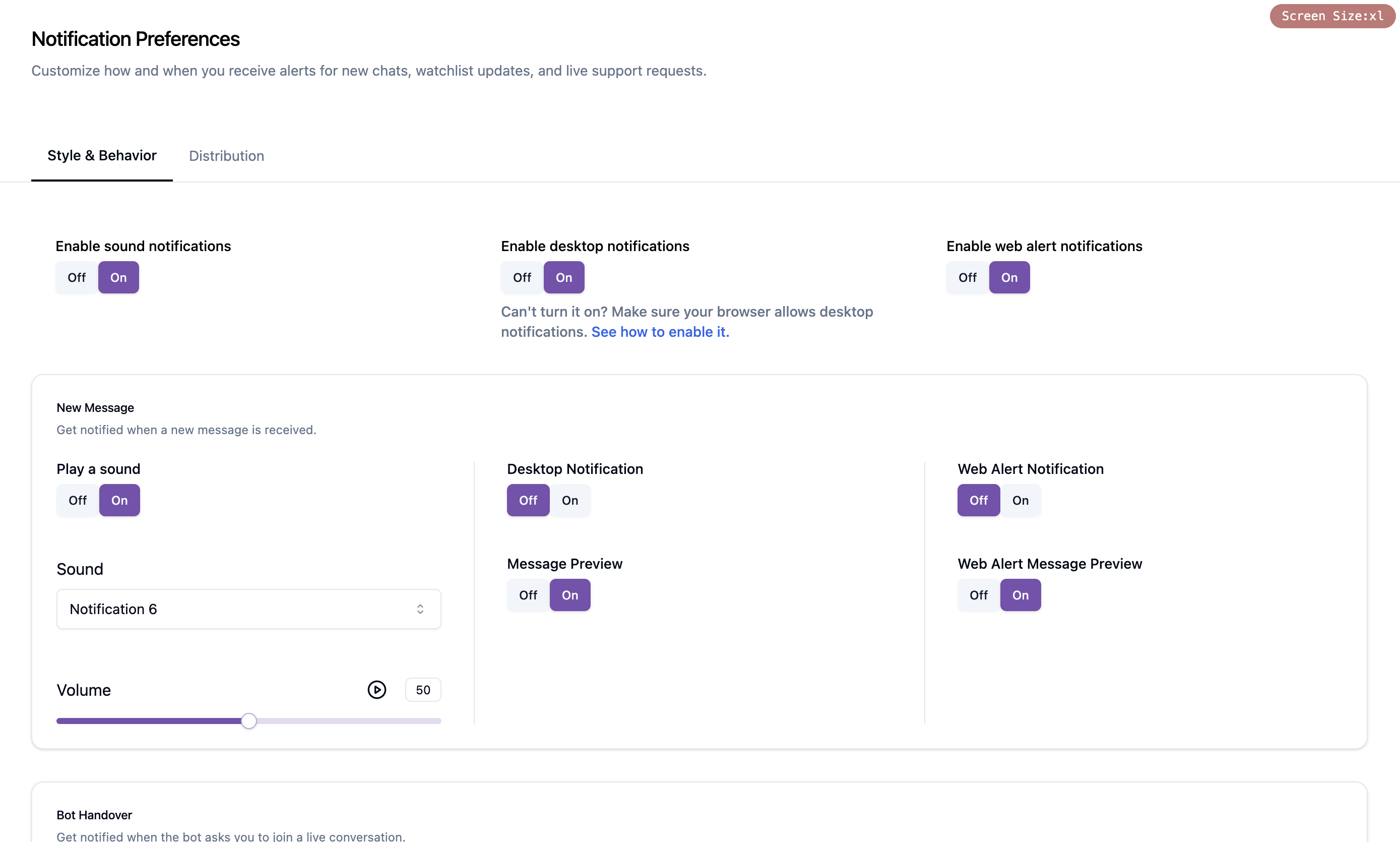
The Style & Behavior tab lets you configure real-time alerts for time-sensitive events. You can control global toggles for sound, desktop, and web alert notifications, and fine-tune the behavior for each individual event.
Supported Events
Sound, desktop, and web alert notifications are triggered for the following events:
| Event | Description | Sound | Desktop | Web Alert |
|---|---|---|---|---|
| New Message | Get notified when a new message is received | ✓ | ✓ | ✓ |
| Bot Handover | Get notified when the bot asks you to join a live conversation | ✓ | ✓ | ✓ |
| Conversation Reminder | Get notified when a conversation stays unassigned or unanswered for a specified amount of time | ✓ | ✓ | ✓ |
| Transfer Requested | Get notified when a transfer request is received | ✓ | ✓ | ✓ |
| Chats Added to Watchlist | Play a sound when any chat added to watchlist | ✓ |
For chats added to your watchlist, only sound notifications are available — desktop and web alert notifications are not supported for watchlist events.
Sound Notifications
Sound notifications play an audio alert when a supported event occurs, helping you stay aware of activity even when you're not actively watching the screen.
To enable sound notifications:
- At the top of the Style & Behavior tab, turn on the Enable sound notifications global toggle.
- For each event, turn on its individual sound toggle.
- Select a notification sound and adjust the playback volume as needed.
Desktop Notifications
Desktop notifications appear as on-screen pop-ups, letting you quickly notice and respond to activity without actively viewing the application.
To enable desktop notifications:
- At the top of the Style & Behavior tab, turn on the Enable desktop notifications global toggle.
- For each event, turn on its individual desktop toggle.
- Optionally, enable Message Preview on new message notifications to show a snippet of the message content in the alert — this option is only available when desktop notifications are enabled.
Below is an example of a desktop notification triggered by a new incoming message:
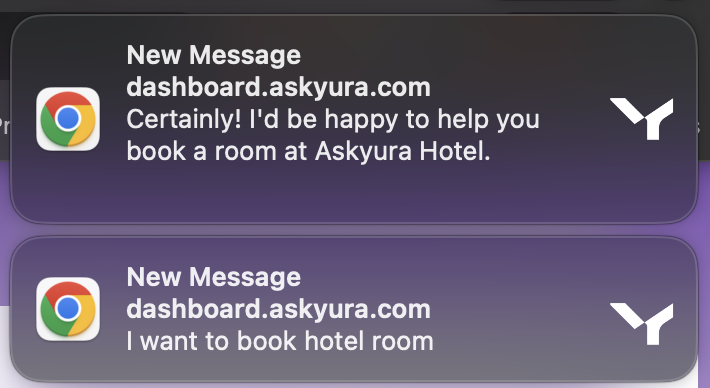
To receive desktop notifications, make sure notifications are enabled in both your browser and your device's system settings.
Web Alert Notifications
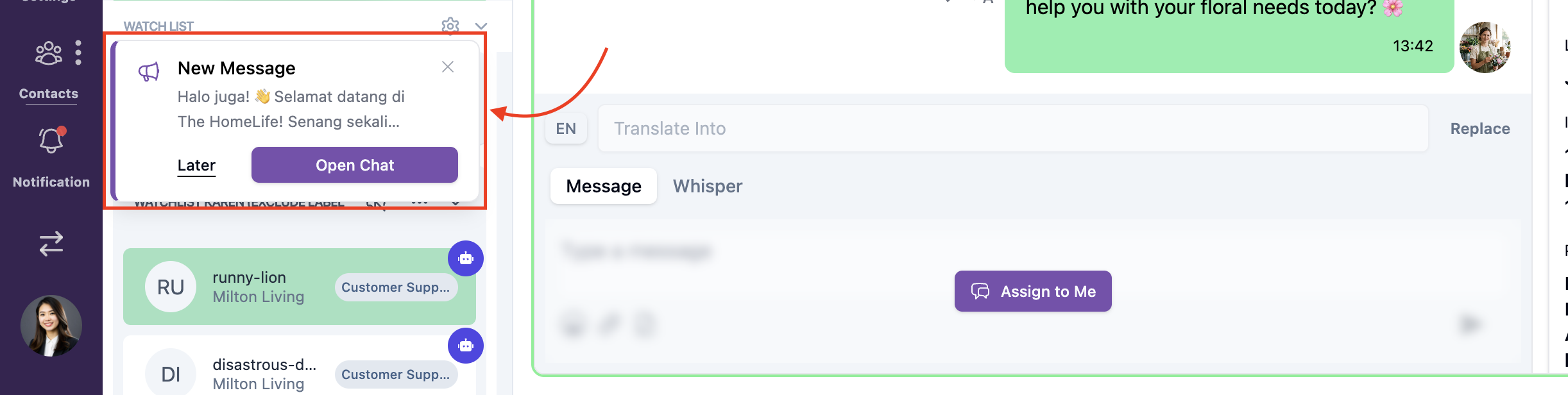
Web alert notifications are pop-up alerts within the dashboard web that appear as a floating card inside the application window — no OS-level notification permission required. When triggered, a pop-up appears with a quick-action button to open the relevant conversation directly.
To enable web alert notifications:
- At the top of the Style & Behavior tab, turn on the Enable web alert notifications global toggle.
- For each event, turn on its individual web alert toggle.
- Optionally, enable Web Alert Message Preview to show a snippet of the message content in the alert — this option is only available when web alert notifications are enabled.
Below is an example of a web alert notification triggered by a new incoming message:
Distribution
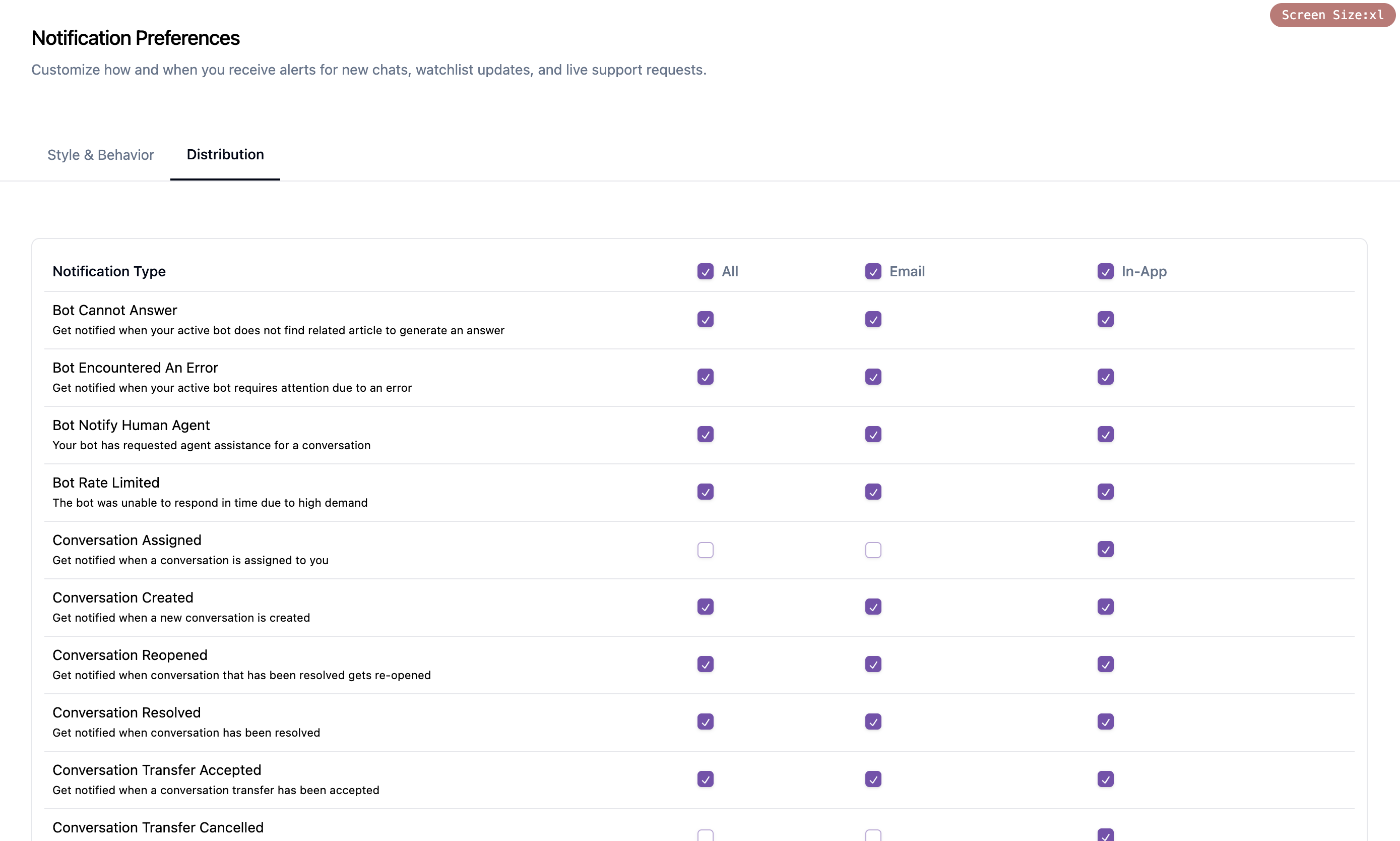
The Distribution tab lets you choose which notification types are delivered to your inbox, your Askyura notification panel, or both.
Delivery Channels
For each notification type, you can select one of the following delivery methods:
- Email — Receive notifications directly in your inbox
- In-App — Receive real-time updates within the Askyura notification panel
- Both — Stay updated across both channels simultaneously
Supported Notification Types
| Notification Type | Description |
|---|---|
| Bot Cannot Answer | Get notified when your active bot does not find related article to generate an answer |
| Bot Encountered An Error | Get notified when your active bot requires attention due to an error |
| Bot Notify Human Agent | Get notified when your bot requests agent assistance for a conversation via the [Notify Human Agent tool](/docs/bot/tools/notify-human-agentool |
| Bot Rate Limited | Get notified when your bot is unable to respond in time due to high demand |
| Conversation Assigned | Get notified when a conversation is assigned to you |
| Conversation Created | Get notified when a new conversation is created |
| Conversation Reopened | Get notified when conversation that has been resolved gets re-opened |
| Conversation Resolved | Get notified when conversation has been resolved |
| Conversation Transfer Accepted | Get notified when a conversation transfer has been accepted |
| Conversation Transfer Cancelled | Get notified when a conversation transfer has been cancelled |
| Conversation Transfer Declined | Get notified when a conversation transfer has been declined |
| Conversation Transfer Requested | Get notified when a conversation transfer has been requested |
| Conversation Unanswered Reminder | Get notified when a conversation doesn't receive a reply after a specified amount of time |
| Conversation Unassigned Reminder | Get notified when a conversation remains unassigned to any agent after a specified amount of time |
| Export Webwidget Conversation Done | Get notified when your requested export webwidget conversation is done |
| Ticket Assigned | Get notified when a ticket is assigned to you |
| Ticket Commented | Get notified when a new comment is added to a ticket |
| Ticket Commented Mentioned | Get notified when you are mentioned in a comment on a ticket |
| Ticket Created | Get notified when a new ticket is created |
| Ticket Reopened | Get notified when a ticket has been reopened |
| Ticket Resolved | Get notified when a ticket has been resolved |
Examples
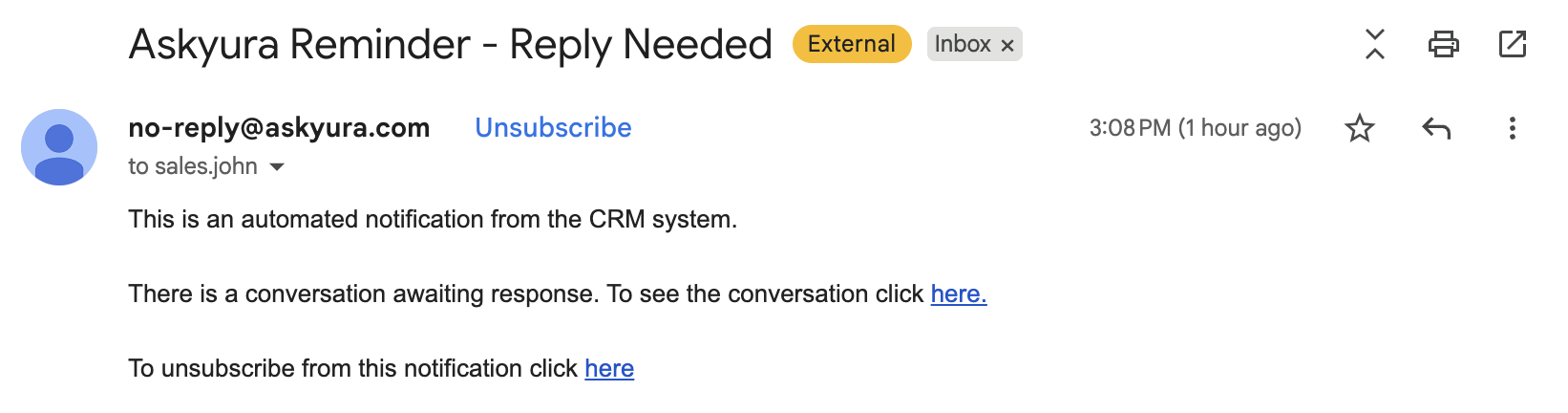
Email notification — the following is an example of an email alert sent when the Conversation Unanswered Reminder notification is enabled:
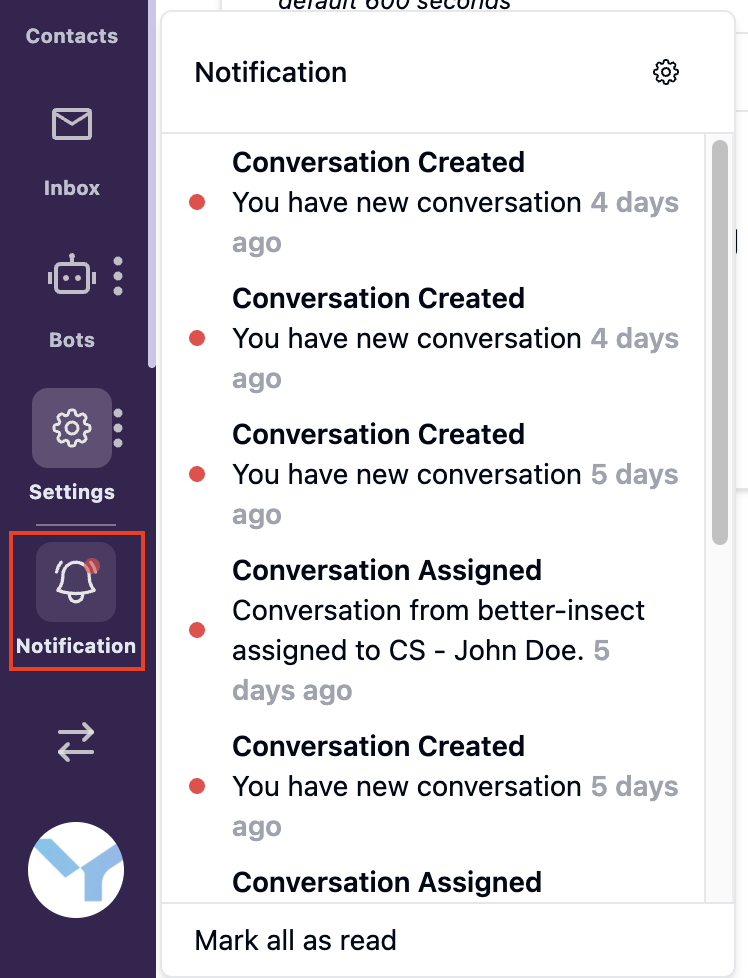
In-app notification — notifications appear in the Notification panel, accessible via the notification icon in the sidebar. Clicking a notification redirects you to the relevant conversation for quick follow-up.