

Overview
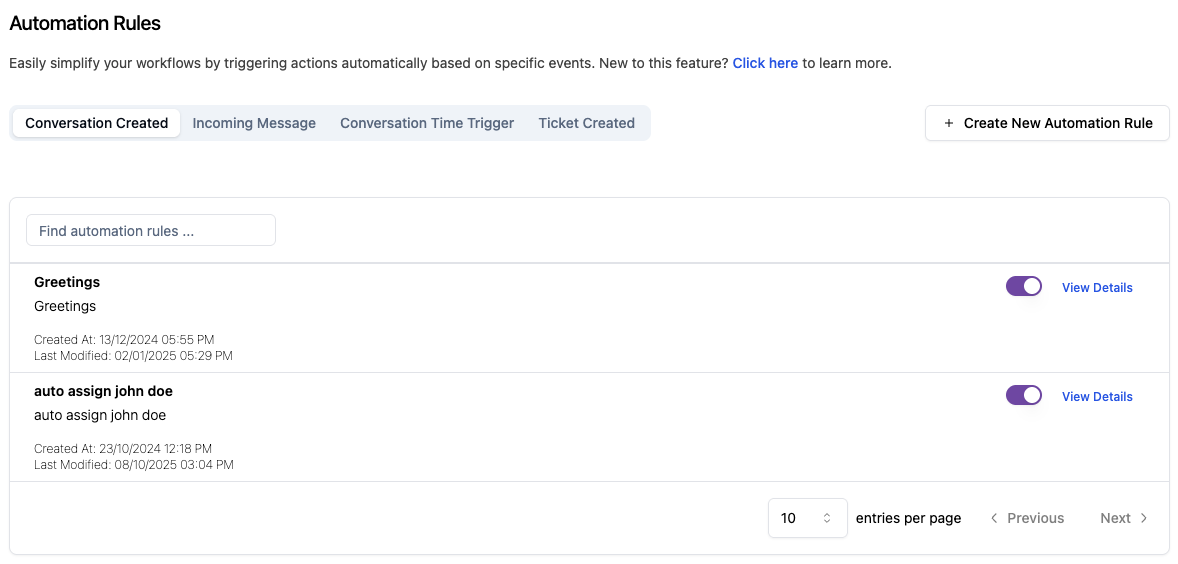
Automation Rules allow you to automatically trigger actions in Askyura based on specific events that happen in your workspace. Instead of handling repetitive tasks manually, you can define rules that respond instantly when certain conditions are met. Helping your team work faster, stay consistent, and reduce operational overhead.
Available Automation Events
Automation events define when an automation rule should be triggered. Each event represents a specific activity or condition in Askyura. When an event occurs, the system evaluates the rule's conditions and automatically executes the configured actions.
Below are the automation events currently available in Askyura, along with a brief explanation of when each event is triggered.
Conversation Created
This event is triggered when a new conversation is created in your workspace. It is commonly used to automatically assign conversations, apply labels, or trigger follow-up actions as soon as a customer starts a conversation.
Learn how to configure conditions and actions on the Event: Conversation Created page.
Incoming Message
This event is triggered whenever a new message is received from a customer in an existing conversation. It is useful for responding to customer activity in real time, such as updating conversation status, notifying agents, or triggering workflows based on customer replies.
See detailed configuration options and examples on the Event: Incoming Message page.
Conversation Time Trigger
This event is triggered based on a time condition related to a conversation, such as inactivity or elapsed time since the last update. It helps automate time-based actions like sending a message to the customer or a reminder to agents or teams without manual monitoring.
View available conditions, actions, and examples on the Event: Conversation Time Trigger page.
Ticket Created
This event is triggered when a new ticket is created. It allows you to automate ticket-related workflows, such as assigning tickets to specific agents, setting priorities, or adding labels to ensure tickets are handled correctly from the start.
Explore conditions, actions, and use cases on the Event: Ticket Created page.
Rate Limited
The Rate Limited rule allows automatic messages to be sent when the workspace reaches its messaging limit. This helps inform customers about potential delays due to high traffic and sets clear expectations for response times.
View full documentation and examples on the Event: Rate Limited page.
Bot Handover
The Bot Handover rule allows conversations to be automatically transferred from the bot to a human agent when the bot is unable to handle the request. This ensures a seamless transition to human support, helping maintain conversation continuity and improve customer experience.
More details on actions and conditions can be found in the Event: Bot Handover page.
