

Contacts Group
The Contacts Group feature allows you to organize your contacts into groups for easier management. By grouping contacts, you can segment your customer data based on shared characteristics and see at a glance who belongs to each segment.
Contacts Group Overview

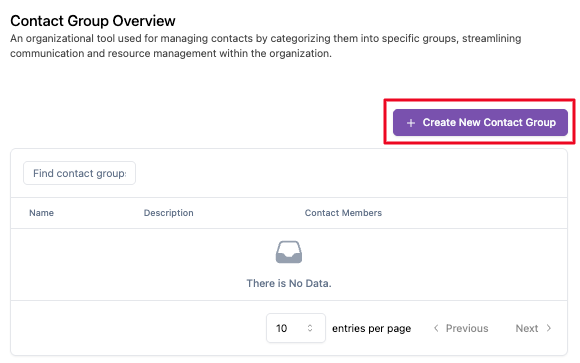
The main view displays all contact groups in your workspace. At the top of the page, you can:
- Create New Contact Group — Click this button to add a new contact group
- Search — Use the search bar to find a group by its name or description
The table displays the following columns:
| Column | Description |
|---|---|
| Name | The name of the contact group |
| Description | A brief description of the group's purpose |
| Contact Members | The number of contacts in the group, or No Contact if it's empty |
Each group also has the following actions:
- View Details — Open the group detail page to edit the group and manage its members
- List Contacts — Quickly view the contacts in the group without leaving the overview
Creating a New Contact Group
To create a new contact group:
-
Click the Create New Contact Group button at the top right of the page.
-
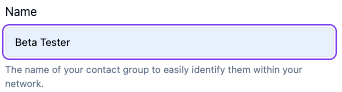
Enter a Name for the group (e.g., "VIP Customers", "Enterprise Accounts", "At-Risk Customers"). The name is required and can be up to 50 characters.
-
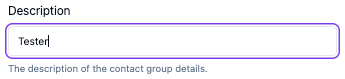
Add a Description to clarify the purpose of the group. The description can be up to 50 characters.
-
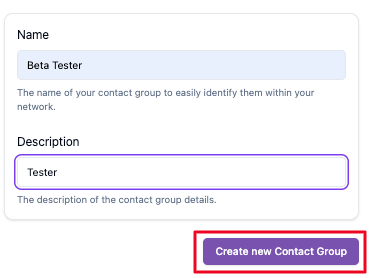
Click Create new Contact Group. You'll be taken to the new group's detail page, where you can start adding contacts.
Managing Contacts in a Group
Contacts are managed from the group detail page. Click View Details on a group to open it. The page has two tabs:
- Contact Members — Contacts that are already in the group
- Contact Non Members — Contacts that you can add to the group
Each tab has its own search bar to help you find a specific contact.

Adding Contacts
-
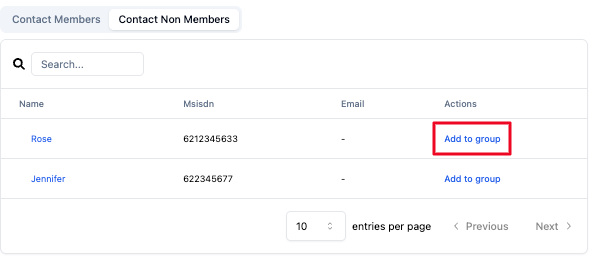
Go to the Contact Non Members tab and click Add to group on each contact you want to add.
-
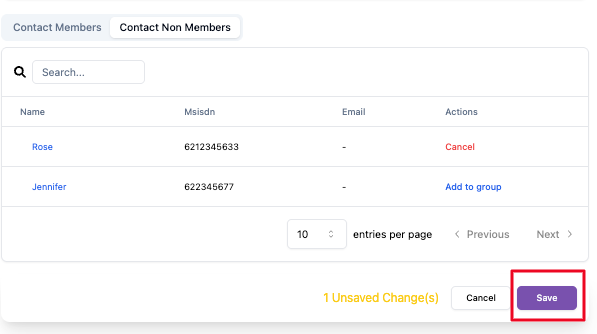
Your selections are kept as unsaved changes until you confirm them. Click Save to add the contacts to the group.
-
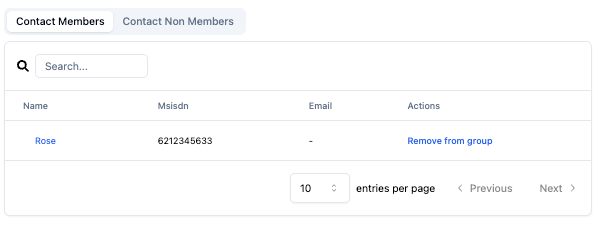
The contacts now appear in the Contact Members tab.
Selected a contact by mistake? Click Cancel next to that contact before saving to undo it.
Removing Contacts
-
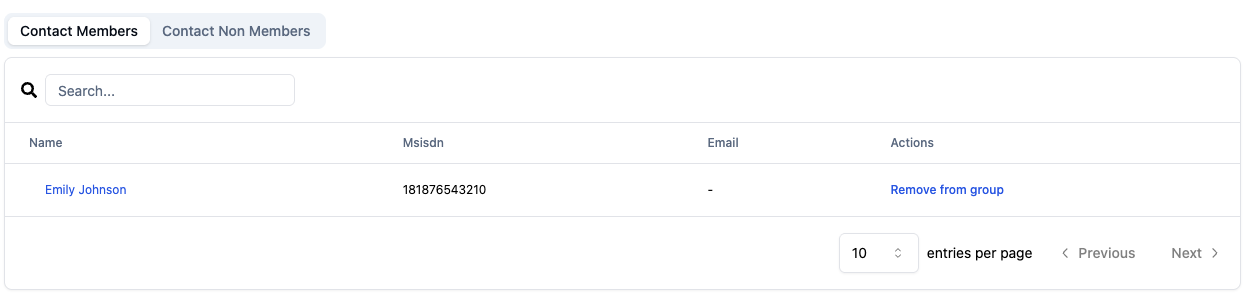
Go to the Contact Members tab and click Remove from group on each contact you want to remove.
-
Click Save to confirm.
The contact is not deleted — it is simply removed from the group and stays in your contact list.
Using Contact Groups
Contact groups help you keep your customer data organized:
- Segment your customers — Group contacts by shared traits, such as "VIP Customers" or "At-Risk Customers", and see at a glance how many contacts are in each segment
- See a contact's groups — Open any contact's profile to see which groups they belong to, so your team has more context when helping that customer
Managing Groups
Editing a Group
To update a group's name or description:
- Click View Details on the group you want to edit.
- Click Edit.
- Change the Name or Description.
- Click Update to save your changes.
Use contact groups to segment your customers based on meaningful criteria such as subscription tier, geographic region, or product interest. Well-organized groups make it easier to deliver personalized experiences and manage your customer data at scale.
