

Article
Articles are where you create and manage the content that will be used by the chatbot to answer customer questions. Each article represents a piece of knowledge, such as FAQs, product information, policies, or troubleshooting steps.
Well-structured articles help the chatbot understand user intent more accurately and generate more relevant responses. Keeping articles focused and up to date is essential for maintaining chatbot performance.
Creating Articles
You can create articles in the Knowledge Base in two different ways, depending on how your content is prepared.
Create Articles Manually
You can create an article by writing the content directly in the editor. This method is suitable when you want full control over the structure, wording, and formatting of the article.
Manual creation is ideal for:
- Product or feature descriptions
- Policy or process documentation
To create an article manually, click the + button in the Articles section and select Add Article.
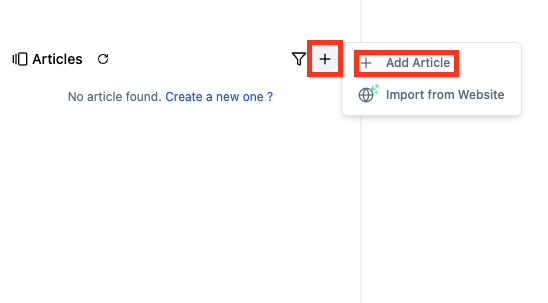
After selecting Add Article, complete all required fields to save the article.

| Field | Description |
|---|---|
| Label | Used to group articles by purpose and control which articles a bot can access based on assigned labels. |
| Tags | Keywords or phrases related to the article. You can add up to 50 tags. Tags help the system identify and retrieve relevant articles more accurately. |
| Source URL | Source of the article if you obtained the content from another reference. |
| Links to Articles | Existing article in the knowledge base that are related to the article you're creating. |
| Availability Time | Defines the time range during which the article is active and available for the chatbot to use. Outside of this time range, the chatbot will not be able to access or reference the article in its responses. This is especially useful for articles about promotions, limited-time offers, or seasonal events. |
| Name | The title of the article. |
You can create a new Label directly from the label dropdown. Articles are managed using labels, which allows you to organize content and attach or detach articles as a group when configuring the chatbot.
For Tags, press Enter after each tag. Tags help the RAG system recognize relevant articles by indexing both the article title and its tags, improving the accuracy of chatbot responses.
Article content is created using the Rich Text Editor (RTE), which allows you to write and organize detailed information for the chatbot. The RTE gives you full flexibility to create articles from scratch, structure content clearly, and apply formatting as needed to improve readability and understanding.

Once you're done, click save and the article will be added to your Knowledge Base and your bot will be able to use the article as a reference to answer customer questions.
Import from Website
The last way to create an article is by using import from website.
You only need to prepare the website link that you want to turn into an article.
- Enter the website link
- Select the crawling method
- Choose the label that matches your article
- Clik start crawl

You can only crawl one link at a time, so complete training before the next crawl.
The system will scan the website and the discovered link will appear at the bottom of the page. Select the link by clicking the checkbox, then click train as article.

If an article with the same name already exists, the system will update the existing article.
Once completed, the selected links will be converted into articles and can be used by your bot.
