

Overview
In the Tickets menu, you can manage all support requests, issue reports, and questions from users. This is the central point of coordination between the support team and users, keeping all communications organized, documented, and easily tracked.
If there are inquiries that cannot be resolved directly through the widget or require follow-up from another team, agents can create a ticket and assign it to the appropriate team.
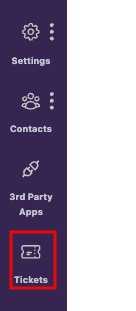
To access the Tickets page, navigate to Tickets in your dashboard.
Main Tickets Menu View
Once you enter the Tickets menu, you will see a page like the image below.

Here, all tickets will appear, complete with information such as:
- Assignee → Who is handling the ticket
- Labels → Ticket category or tag
- Status → Whether the ticket is still open, in progress, or completed
- Sort By → To sort tickets as needed
- Unread Ticket → Displays unread tickets
If there are no tickets yet, the page will be blank, as you can see in the example in the image. But don't worry, once a user creates a ticket, everything will automatically appear here.
Tip: Use the Filter and Sort By features to quickly find important tickets without having to scroll through the process.
