

Dynamic Values
Dynamic Values allow you to insert predefined or API-based variables into the knowledge base for the chatbot to use during conversations. Instead of hardcoding specific information into your articles, you can reference dynamic values that are resolved at runtime — keeping your knowledge base flexible and up to date.
Dynamic Values Overview

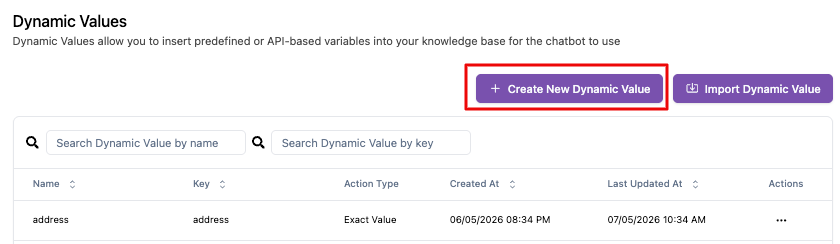
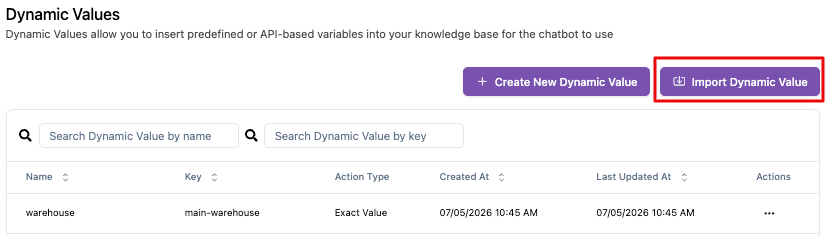
The main view displays all dynamic values configured for your bot. At the top of the page, you can:
- Create New Dynamic Value — Click this button to add a new dynamic value
- Import Dynamic Value — Import dynamic values from a file to quickly set up multiple entries
- Search by Name or Key — Use the search bar to find specific dynamic values
The table displays the following columns:
| Column | Description |
|---|---|
| Name | A human-readable name that describes the dynamic value |
| Key | The unique key used to reference this value in the knowledge base (e.g., {{business_hours}}) |
| Action Type | The type of dynamic value — either a predefined static value or an API-based value |
| Created At | The date and time when the dynamic value was created |
| Last Updated At | The date and time when the dynamic value was last modified |
| Actions | Options to edit or delete the dynamic value |
Use the Entries per page control at the bottom to adjust how many entries are shown, and navigate between pages using the pagination controls.
Creating a New Dynamic Value
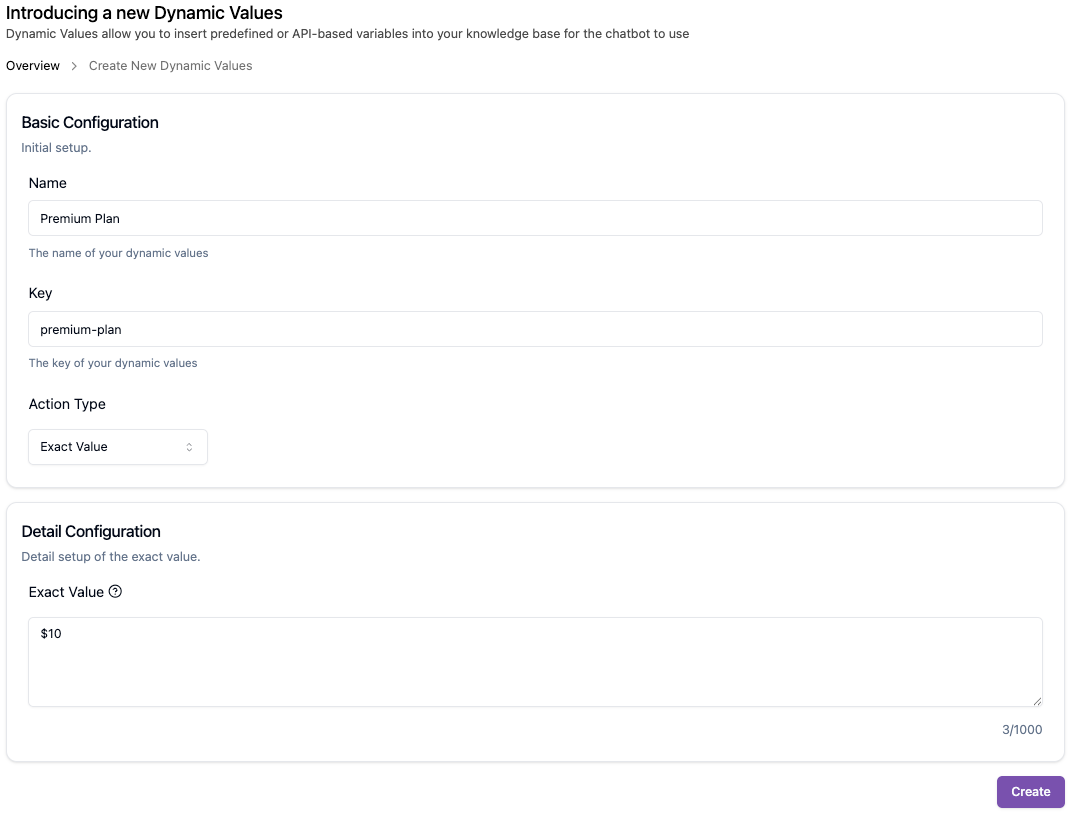
To create a new dynamic value:
-
Click the Create New Dynamic Value button at the top right of the page.
-
Enter a Name that clearly describes the purpose of the value.

-
Define the Key that will be used to reference this value in knowledge base articles.

-
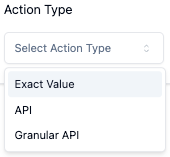
Select the Action Type:
-
Exact Value — Enter a fixed value that remains the same until manually updated (e.g., business hours, company address, return policy details).
-
API-based — Configure an API endpoint that the bot will call at runtime to retrieve the latest value (e.g., current stock levels, real-time pricing, account balance). API based support two types, API and Granular API.
- API: Standard data retrieval
- Granular API: More detailed data mapping
-
-
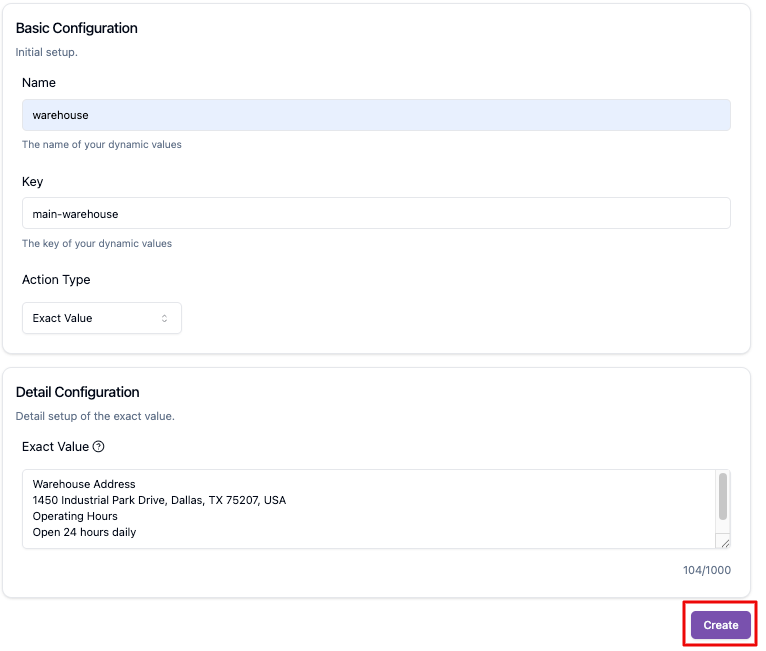
Configure the value or API settings based on the selected action type.

-
Click Save to create the dynamic value.
Importing Dynamic Values
If you need to set up multiple dynamic values at once, use the Import Dynamic Value feature:
-
Click the Import Dynamic Value button.
-
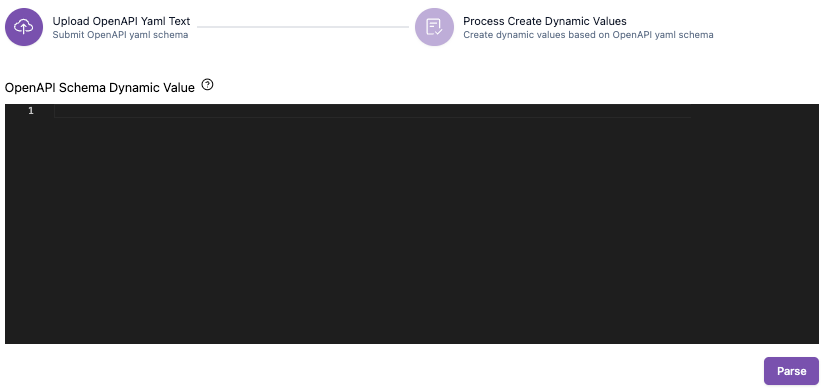
Upload your file following the required format.
-
Review the imported entries and confirm.
Using Dynamic Values in the Knowledge Base
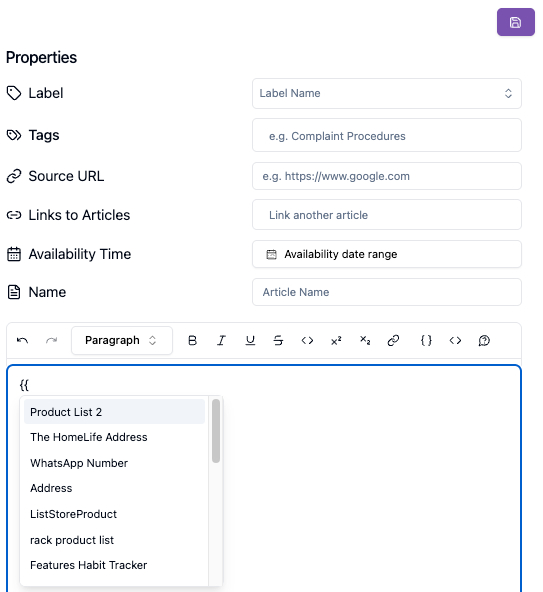
Once created, you can reference dynamic values in your knowledge base articles by {{ and you will see a list of the dynamic values you have. When the bot encounters the key during a conversation, it automatically resolves the value — either by returning the static value or calling the configured API.
This is especially useful for:
- Frequently changing information — Prices, schedules, or availability that change regularly
- Personalized responses — Account-specific data retrieved via API
- Centralized management — Update a value once and it applies everywhere the key is referenced
Keep your dynamic value keys descriptive and consistent. Use a naming convention such as
company_hoursorreturn_policyso that team members can easily understand what each key represents when editing knowledge base articles.
