

Tools
Bot Tools allow your bot to perform actions beyond answering questions, such as interacting with systems, responding to website behavior, or escalating conversations to human agents.
All Bot Tools are organized into four tabs at the top of the Tools page:
- Preset
- Browser Function
- API Tools
- MCP
You can navigate between these tabs to configure different types of bot capabilities. Each tab represents a distinct integration approach, and the explanation below follows the same order as the tabs shown in the interface.

Preset
Preset tab provides built-in tools that can be enabled to extend your bot's default behavior without additional configuration. These tools handle common automation and interaction needs.
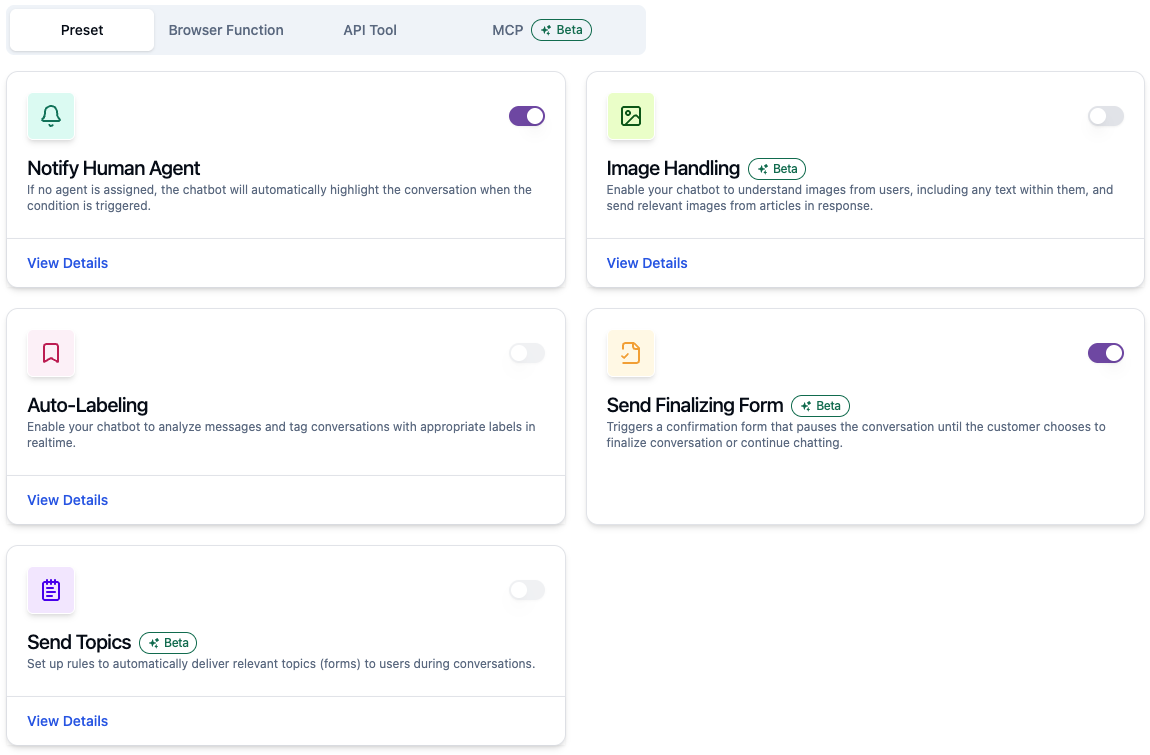
In this section, there are 5 tools that you can activate, such as:
Notify Human Agent
Tool that allows the bot to notify human agents via email when human assistance is required. In addition to sending a notification, the bot also includes the reason why human intervention is needed, so agents understand the context before taking over the conversation.
You can define when the bot should trigger human escalation and what response the bot sends to the customer. Common trigger scenarios include:
- When the bot does not know how to answer a customer's question
- When the customer explicitly asks to speak with a human agent
At the same time, you can configure the response message that the bot sends to the customer when this tool is triggered, informing them that a human agent will take over the conversation.

Next, you can define who will receive the notification email. You can:
- Select one or more agents within your workspace, or
- Notify people outside the workspace by entering their email addresses

By configuring the trigger conditions, customer response, and notification recipients, you ensure that conversations requiring human attention are escalated clearly and efficiently.
Image Handling
Tool that allows the bot to understand images from users, including any text within them via OCR, and send relevant images from the knowledge base in response.
When this tool is enabled, customers can send images such as screenshots, photos, or visual references as part of their conversation. The bot can then use the image content — including any text it reads from the image — as additional context when generating its response, and can also send back relevant images from the knowledge base articles when they help answer the customer's question. You can also give the bot an optional prompt to guide how it should respond to specific types of images.
This tool is useful in scenarios where visual information is important, for example:
- Customers reporting visual issues or errors
- Users sharing screenshots for clarification
- Product-related questions that involve images
To learn more about this tool, please follow this guide.
Auto-Labeling
Tool that allows the bot to automatically apply labels to conversations based on conditions you define, without manual tagging.
For each condition you configure, you pair it with one or more labels. When the bot detects that a conversation matches the condition, it applies the corresponding label.
To learn how to configure conditions and labels for this tool, please follow this guide.
Send Topics
Tool that allows the bot to automatically deliver relevant Topics (forms) to users during a conversation, based on conditions you define, instead of waiting for the customer to select a topic manually.
For each condition you configure, you pair it with a topic. When the bot detects that a conversation matches the condition, it sends the corresponding topic form to the customer.
To learn how to configure conditions and topics for this tool, please follow this guide.
Send Finalizing Form
Tool that allows the bot to send a Finalizing Form to the customer when it determines the conversation is ready to be finalized. The form asks the customer whether their issue has been resolved, and pauses the conversation until they choose to close it or continue chatting.
To learn more about this tool, please follow this guide.
Browser Function
Browser function tab allows your bot to respond to interactions with the website.

This feature will only work if the widget you use is an embed code that is attached to your website/platform and at least you have technical coding or scripting skills because this feature allows your bot to read the code/script on the website/platform.
To learn how to configure Browser Function and connect your bot to your website, please follow this guide.
API Tools
API Tools tab allows your bot to call external APIs during a conversation, such as checking an order status or creating a support ticket in your system.

API Tools work across every channel your bot is connected to — no embed code needed. All you need is an API endpoint your bot can call and a basic understanding of how APIs work (URLs, methods, and headers).
To learn how to configure API Tools and connect your bot to external systems, please follow this guide.
MCP
MCP tab allows your bot to communicate with external tools using the Model Context Protocol. This enables advanced integrations by passing structured context between the bot and supported external tools.

Like API Tools, MCP works across every channel your bot is connected to — no embed code needed. All you need is the URL of an MCP server your bot can connect to.
To learn how to configure MCP and connect your bot to an external MCP server, please follow this guide.
For further tutorials you can access the official guide at the following link https://modelcontextprotocol.io/tutorials/building-mcp-with-llms
