

Finalizing Form
The Finalizing Form is a confirmation prompt sent to customers asking whether their issue has been resolved. It appears on the customer's chat widget and gives them the option to confirm resolution or indicate that their problem is still ongoing.
This form can be triggered manually by an agent or automatically by the bot, depending on how the conversation is handled.
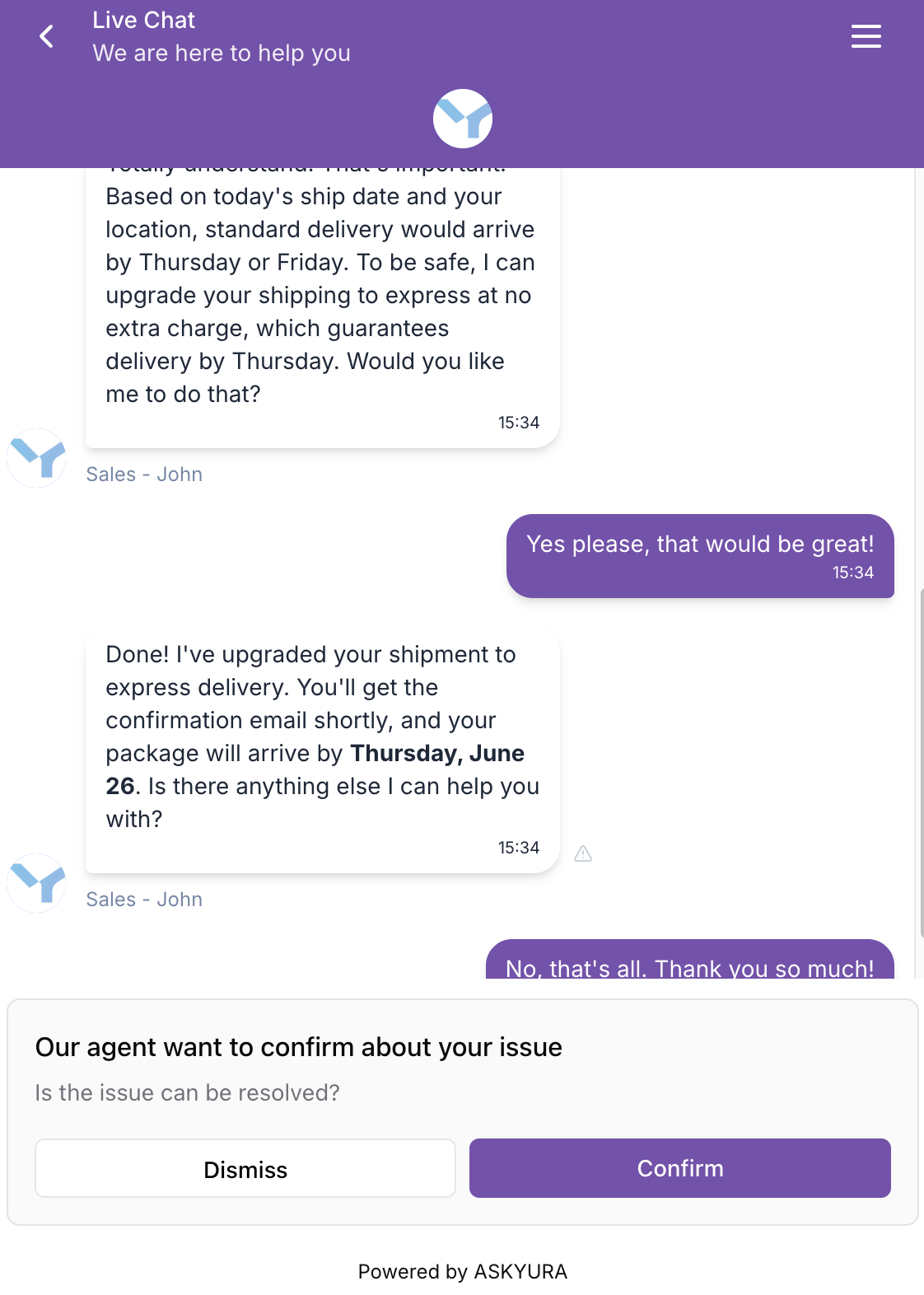
Configuring the Form
You can customize the text that appears on the finalizing form through the Web Widget settings.
If the toggle is left disabled, the form will be sent using the default wording.
To configure the form wording:
- Navigate to Settings → Web Widget from the navigation bar.
- Open the web widget you want to configure.
- Go to the Style Configuration tab.
- Scroll to the Use Custom Text for Finalizing Form section.
- Toggle on Use Custom Text for Finalizing Form to enable custom wording.
- Customize the following fields:

| Field | Description |
|---|---|
| Confirmation Title | The main heading shown on the form (e.g., "Is your issue resolved?") |
| Supporting Message | A secondary message providing context below the title |
| Dismiss Button Label | The label for the button customers click if their issue is not yet resolved |
| Confirm Button Label | The label for the button customers click to confirm their issue is resolved |
Changes are applied per web widget, so you can use different wording for different widgets.
Sending the Form Manually (Agent)
Agents can send the finalizing form to a customer at any point during a conversation.
Only agents with the Send Finalizing Form permission can send this form. If you don't see this option, contact your workspace admin to review your role permissions.
To send the finalizing form manually:
- Open the conversation in the Chat panel.
- Click the More menu (⋮) in the conversation area.
- Select Send Finalizing Form.

Automatic Trigger by Bot
When a conversation is handled by the bot, the finalizing form can be sent automatically when the bot determines the conversation is ready to be finalized. To enable this, turn on the Send Finalizing Form tool in your bot's settings. See Send Finalizing Form for details.
Customer Response
Regardless of how the form is triggered, the behavior is the same once the customer receives it:
- If the customer clicks the Confirm button, the conversation moves toward the finalized state.
- If the customer clicks the Dismiss button, the conversation remains open for further assistance.
