

Notify Human Agent
The Notify Human Agent tool allows your bot to escalate conversations to the human agent. The chatbot will show escalation activity directly in the conversation or via email when human assistance is required. When triggered, the bot also includes the reason why human intervention is needed, giving agents the context they need before taking over.
If no agent is currently assigned to the conversation, the chatbot will automatically highlight the conversation in the dashboard so agents are aware it needs attention.
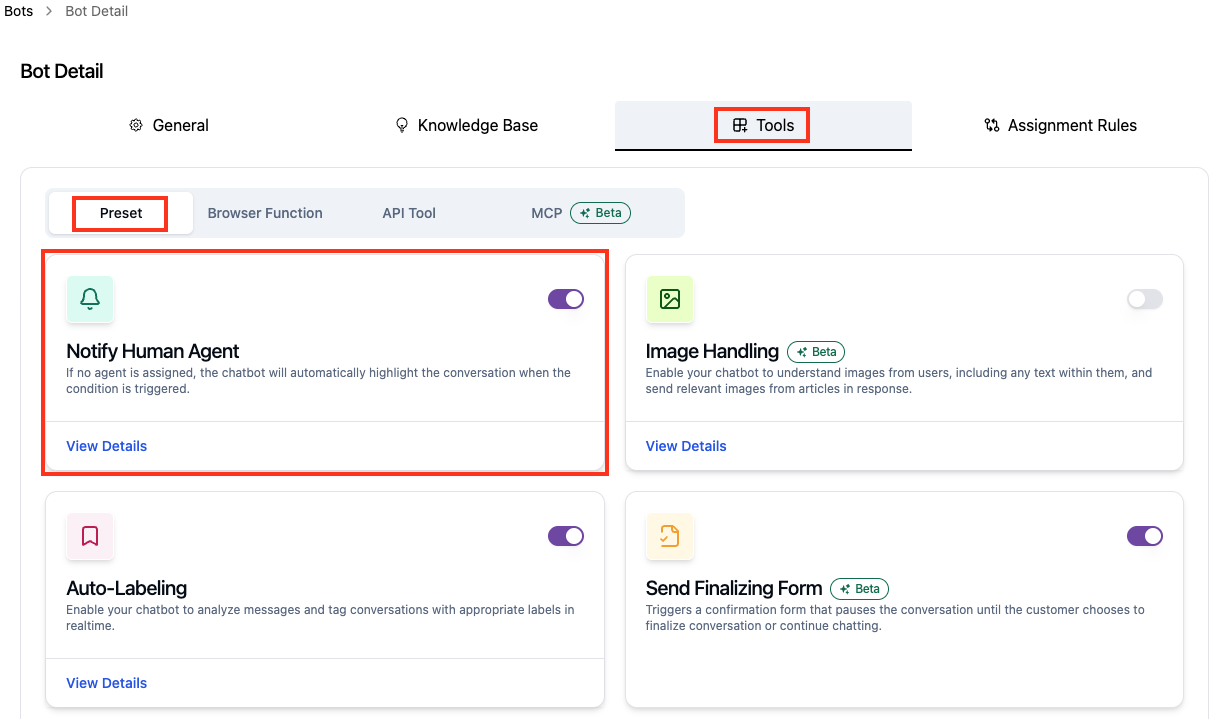
You can navigate to Bots → Select your bot → Tools → Preset → Notify Human Agent
How It Looks in Conversation
When the Notify Human Agent tool is triggered, agents can see the escalation activity inside the conversation view.
The chat will display:
- A system message indicating the tool was triggered: "1 tool has been triggered: Notify Human Agent tool"
- A highlighted note showing the reason for notification (e.g., "User explicitly asked to talk with the manager") — this is only visible to agents, not the customer

This gives agents immediate context so they can take over the conversation without needing to ask the customer to repeat themselves.
Configuration

When should the chatbot escalate to a human agent?
Define the conditions that tell the bot when to trigger human escalation. The bot uses this instruction to decide when to hand off the conversation automatically.
Be specific and include examples of scenarios or phrases that indicate a user needs human support.
Tips:
- Describe intent and context, not just exact phrases
- Include variations of how users might request human assistance
- Avoid vague descriptions such as "when the user needs help"
Custom Response When Condition is Triggered
Set the message the bot sends to the customer at the moment the escalation is triggered. This response lets the customer know that a human agent will be assisting them.
Example: Please wait while we connect you to an agent. An agent will be with you shortly.
Tips:
- Keep the message clear and reassuring
- Avoid leaving the customer without acknowledgment while they wait

Stop Email Alerts on Assignment
This setting takes effect when the Notify Human Agent tool is triggered while an agent is already assigned to the conversation.
| State | Behavior |
|---|---|
| On | Stops email notifications from being sent |
| Off | Email notifications will still be sent |
Use this to avoid sending redundant email alerts when an agent is already handling the conversation.
Pause Bot on Assignment
When enabled, this setting auto-pauses the bot when the tool is triggered again while an agent is already assigned and the bot was previously resumed.
| State | Behavior |
|---|---|
| On | The bot is automatically paused |
| Off | The bot continues running regardless of assignment state |
This prevents the bot from interfering after a human agent has already taken over and the conversation was re-engaged.
Email Configuration

Define who receives the email notification when the Notify Human Agent tool is triggered.
All human agents can still see the escalated conversation in the dashboard, regardless of whether they are listed here.
You can add recipients in two ways:
- Select Agent — Choose one or more agents from within your workspace
- + Add — Manually enter an email address to notify people outside the workspace
Added recipients are listed in a table showing their Name, Email, and available Actions (edit or remove).
Below is an example of the email notification sent when the Notify Human Agent tool is triggered:

Best Practices
- Write trigger conditions that reflect real scenarios in your conversations
- Set a clear and empathetic custom response message so users are not left waiting without context
- Add specific agents or team leads to the email configuration to ensure the right people are notified
- Use Stop Email Alerts on Assignment to reduce notification noise when an agent is already assigned
- Enable Pause Bot on Assignment so that if a human agent resumes the bot in a conversation and the bot is triggered again, the bot will automatically pause itself instead of responding
