General
The General section allows you to define your bot's identity and control how it behaves during conversations. Settings in this section affect how the bot presents itself, how it responds, and how strictly it follows available knowledge.
Use this section to shape the bot's personality and adjust its default behavior before connecting it to channels.
Bot Persona

The Bot Persona defines how your bot is introduced and how it communicates with users. These settings describe how the bot presents itself and communicates with users, including its identity, tone, and default interaction style. This information is required to ensure the bot can respond consistently and represent its intended role.
| Field | Description |
|---|---|
| Name | A unique internal identifier used to easily manage the bot's purpose within your widget. |
| Persona Name | The display name used by the bot when responding to users in conversations. |
| Persona Description | A short description that defines the bot's role, tone, and communication style. This description helps guide how the bot responds to user messages. |
Tips: Building an Effective Bot Persona
- Know your audience, is it general users, business customers, or internal staff? Tailor the bot's speaking style to them.
- Use natural language, avoid stiff or overly technical answers.
- Provide a consistent character, for example, a friendly bot always opens a conversation with a cheerful greeting.
- Test regularly, use the test chat feature on the right side of the screen to make sure the bot is answering what you expect.
Advanced Settings
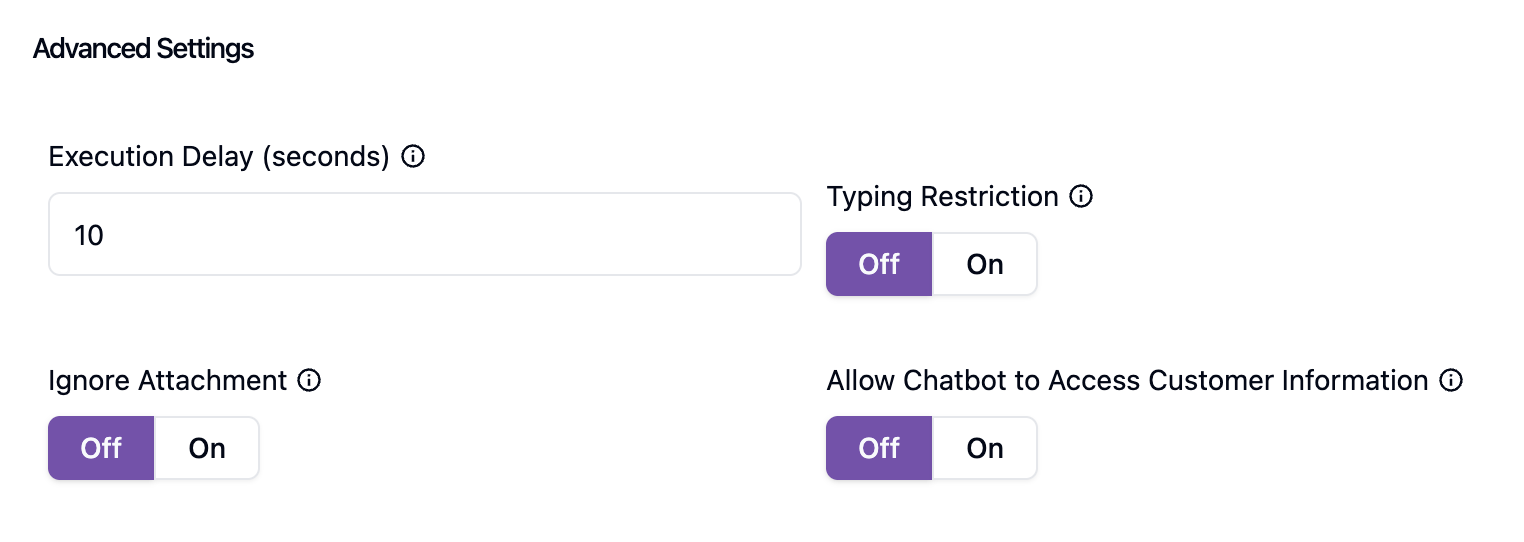
Advanced Settings section is used to configure how the bot operates. These settings control the bot's behavior, interaction flow, and system-level handling during conversations.
Execution Delay
The bot waits for a specified amount of time before generating a response. This allows customers to send additional messages that may add more context.
The timer resets every time the customer sends a new message. The minimum delay is 5 seconds.

Typing Restriction
Controls whether the agent text box is active while the bot is replying. If turned on, the text box is disabled, and agents cannot type. When the bot is paused, the text box becomes enabled again so agents can send messages.

Ignore Attachment
When enabled, the chatbot will ignore all attachments in conversations, even if Image Handling in tools is active.
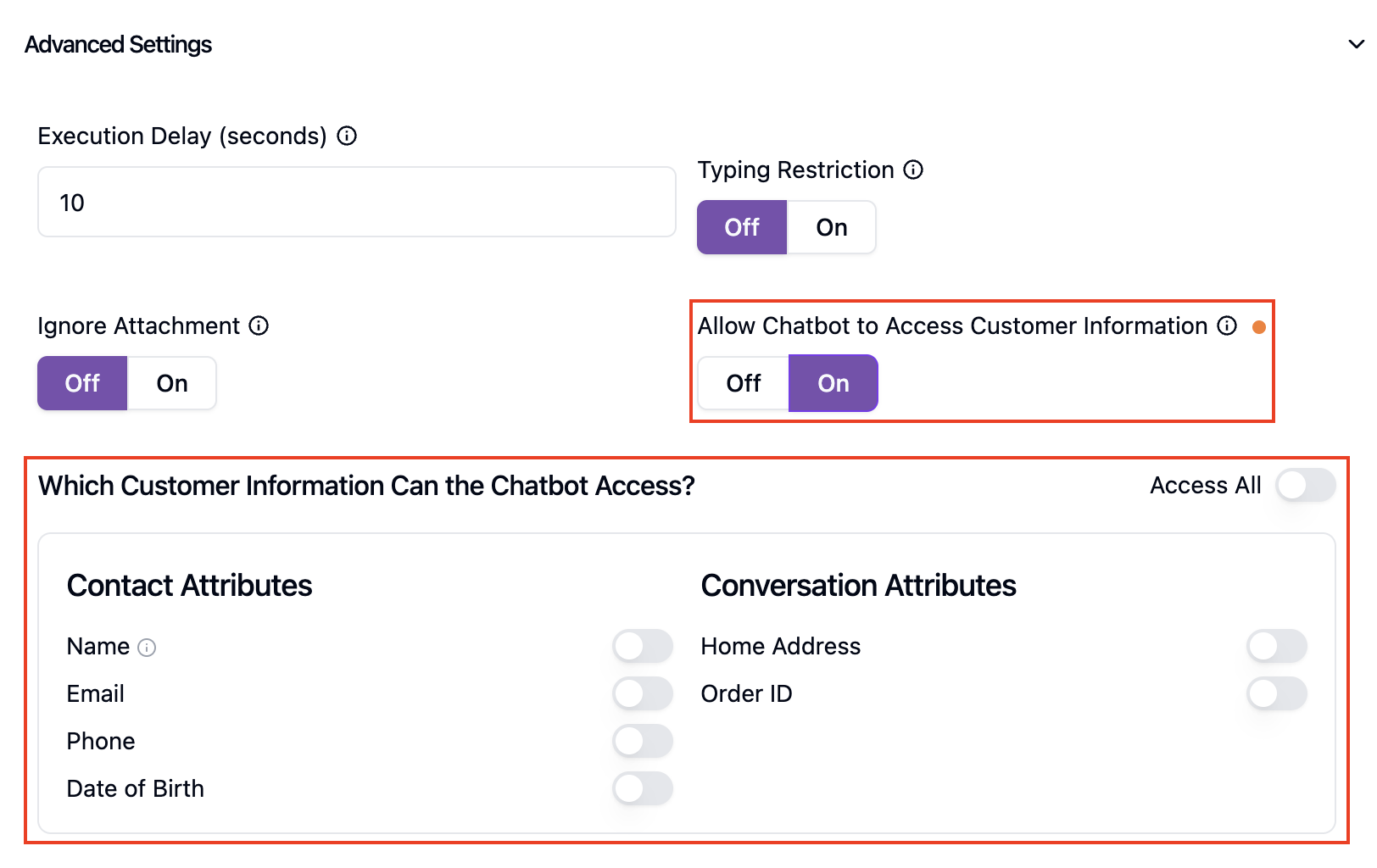
Allow Chatbot to Access Customer Information
Let the chatbot use selected customer information to give more relevant responses. You can choose which information to share.
When turned on, the Which Customer Information Can the Chatbot Access? panel appears. Use the toggle next to each attribute to choose what the chatbot can read:
- Contact Attributes — Information about the customer, such as Name, Email, Phone, and Date of Birth.
- Conversation Attributes — Information specific to the current conversation, such as Home Address or Order ID.
Turn on Access All to give the chatbot access to every attribute at once. Any Custom Attributes you create also appear in this panel.