

Managing Success with Chat Resolution Rules
In many cases, when customers have already received their answers, they don't close or mark the session as resolved and simply abandon the chat. This can cause your inbox to become overcrowded and difficult to manage.
In this chapter, you will learn two key things:
- When the system automatically marks an inactive conversation as Resolved
- When the system automatically closes a Resolved conversation that has no further activity
Before configuring these settings, it's important to understand the three conversation statuses used in the system.
Conversation Statuses
Open
An open conversation is an active chat where the customer or agent can still send messages. This status indicates that the issue is not yet considered complete.
Resolved
A resolved conversation means the customer's issue has been addressed, but the conversation is still temporarily available in case the customer sends a follow-up message.
Finalized
A finalized conversation is fully closed. No further messages can be sent, and the conversation is archived for record-keeping and reporting purposes.
Learn more about conversation status in this page.
Steps to Set Chat Resolution Time
For example, if you want to set the system to automatically resolve conversations that have been idle for 24 hours and finalize resolved conversations after 10 minutes of inactivity, follow these steps:
-
Go to Settings, then open Configuration in the Chat section.
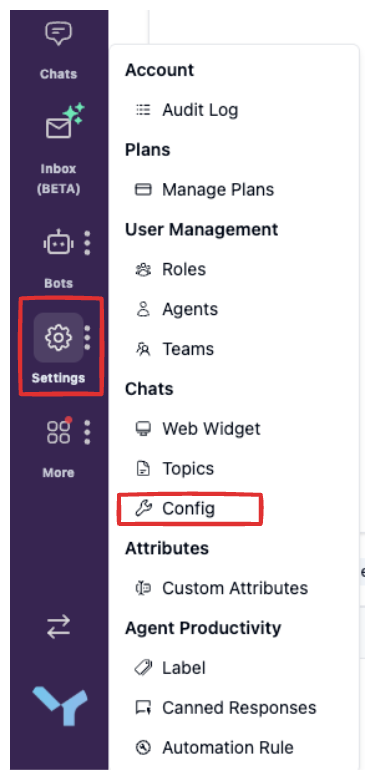
-
Locate Chat Resolution Timing. You will see two fields that can be configured:
- Time until chat is automatically resolved:
86400 - Time until chat is finalized after resolution:
600

- Time until chat is automatically resolved:
-
Save your settings by clicking the Save button.
Notes:
- For Time until chat is automatically resolved, the minimum allowed duration is 300 seconds.
- Any conversations that were already idle before the change will not be affected and will continue using the previous configuration.
- The new settings only apply to conversations that have activity after the configuration is saved.
Wrapping Up
By configuring chat resolution timing, you can keep your inbox clean and prevent abandoned conversations from piling up.
In this course, you learned:
- How conversation statuses work
- How to automatically resolve and finalize inactive chats based on your workflow.
With the right settings, Askyura helps your team stay focused on active conversations and respond more efficiently.
