

Agent Availability & Shifts
The Agent Availability & Shifts page allows you to manage and view your team's availability. You can override availability and create shift schedules. This ensures that your team has adequate coverage during business hours and that conversations are routed only to available agents.
The page is organized into two tabs: Availability and Shifts.
Availability Tab

The Availability tab allows you to manage each agent's availability status. Agents can be in one of the following states:
| Status | Description |
|---|---|
| Available | The agent is available and ready to receive new conversations |
| Unavailable | The agent is unavailable to accepting new conversations |
Setting Availability
Agents can set their own availability from the dashboard. Administrators can also manage agent availability from this tab.
Overriding Availability
In some cases, you may need to override an agent's availability status manually. This is useful when:
- An agent forgets to set their status before leaving
- You need to temporarily remove an agent from the queue during a meeting or break
- You want to force an agent online during a high-traffic period
To override availability, click the status dropdown next to the agent's name to switch their status between Available and Unavailable.
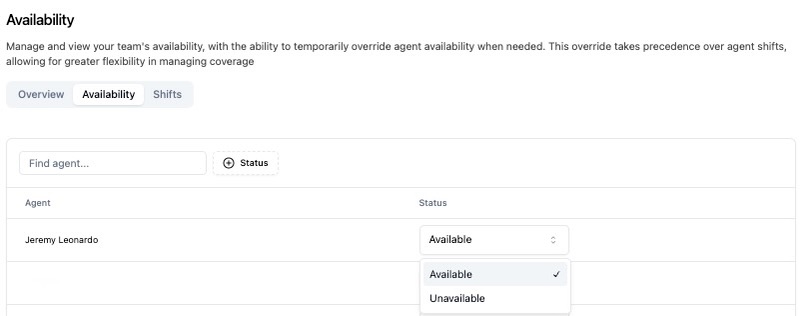
After you click Unavailable, you will see the pop-up to set override agent availability.
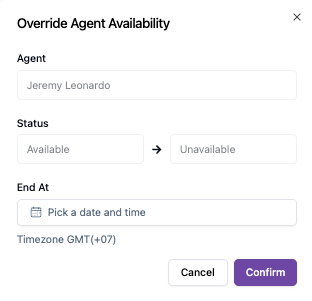
You can set when the availability override starts and ends.
Shifts Tab

The Shifts tab allows you to create and manage shift schedules for your agents. Shifts define when each agent is expected to be available, helping you plan coverage and ensure consistent service quality.
Creating a New Shift

To create a new shift schedule:
- Click the Create New Shift button at the top right of the tab.
- Enter a Name for the shift (e.g., "Morning Shift", "Weekend Coverage", "Night Support").
- Define the Schedule — select the days and times for the shift.
- Assign agents to the shift.
- Click Save to create the shift.
Searching Shifts
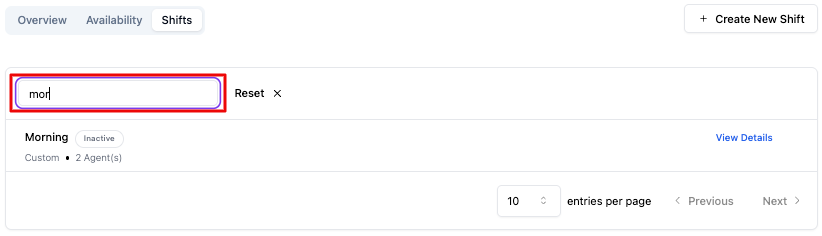
Use the search bar at the top of the Shifts tab to find specific shift schedules by name.
Managing Shifts

- Edit — Click on a shift to update its name, schedule, or assigned agents.
- Delete — Remove a shift that is no longer needed. Agents previously assigned to the shift will remain in the workspace but will no longer have that shift schedule applied.
How Availability Affects Conversation Routing
Agent availability is directly tied to how conversations are routed in your workspace:
- Available agents receive new conversations based on assignment rules and queue settings.
- Unavailable agents do not receive new conversations, but they can still view and respond to conversations already assigned to them.
- Shift schedules can automatically update agent availability based on the configured times, ensuring agents are online during their scheduled hours and offline outside of them.
Set up shift schedules to match your business hours and customer demand patterns. Use the Overview tab regularly to monitor real-time agent availability and make sure you have enough coverage during peak hours.
