

Build Your First AI Bot
This guide walks you through creating your first bot in AskYura. You'll learn how to set up the bot's basic information, define its persona, configure advanced behavior, and enhance its intelligence using a knowledge base—so your bot is ready to interact with customers confidently.
Steps to Create Your First AI Bot
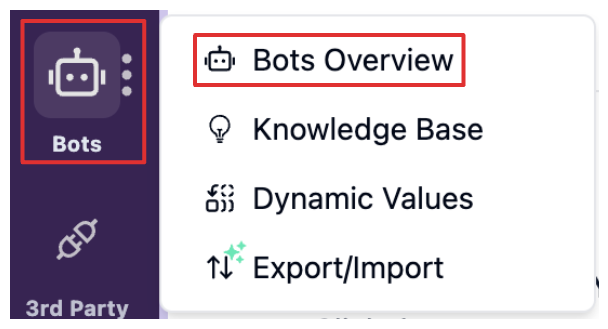
Step 1: Open Bots Overview
Go to Bots > Bots Overview in your AskYura dashboard.
Step 2: Create a New Bot
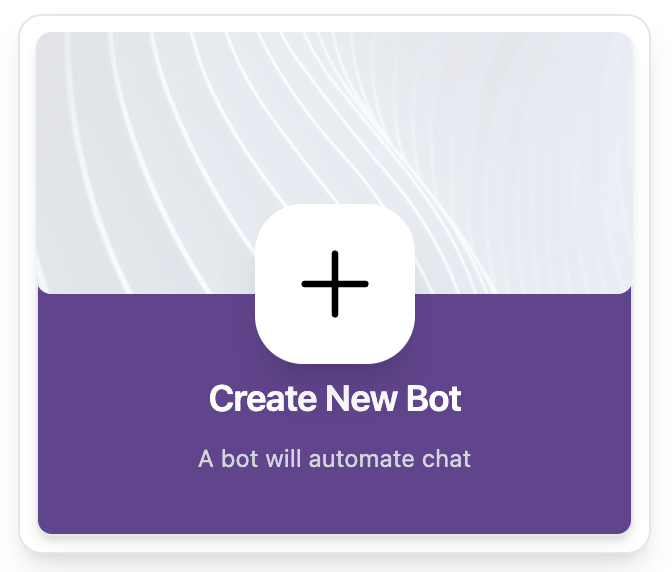
On the Bots Overview page, click the Create New Bot card.
Step 3: Set Basic Bot Information
Upload your bot avatar and fill in the Name and Persona Name. The Name is only shown in the admin dashboard, while the Persona Name is displayed to customers during conversations.

Step 4: Define the Bot Persona
Fill in the Persona Description to define how your bot behaves and responds. This description helps the bot understand its role, tone, and responsibilities when assisting customers.
Example:
You are a friendly customer support assistant for an e-commerce platform. Your role is to help users track orders, answer product-related questions, and guide them through returns or refunds. Always respond clearly, politely, and concisely.
Step 5 (Optional): Configure Advanced Settings
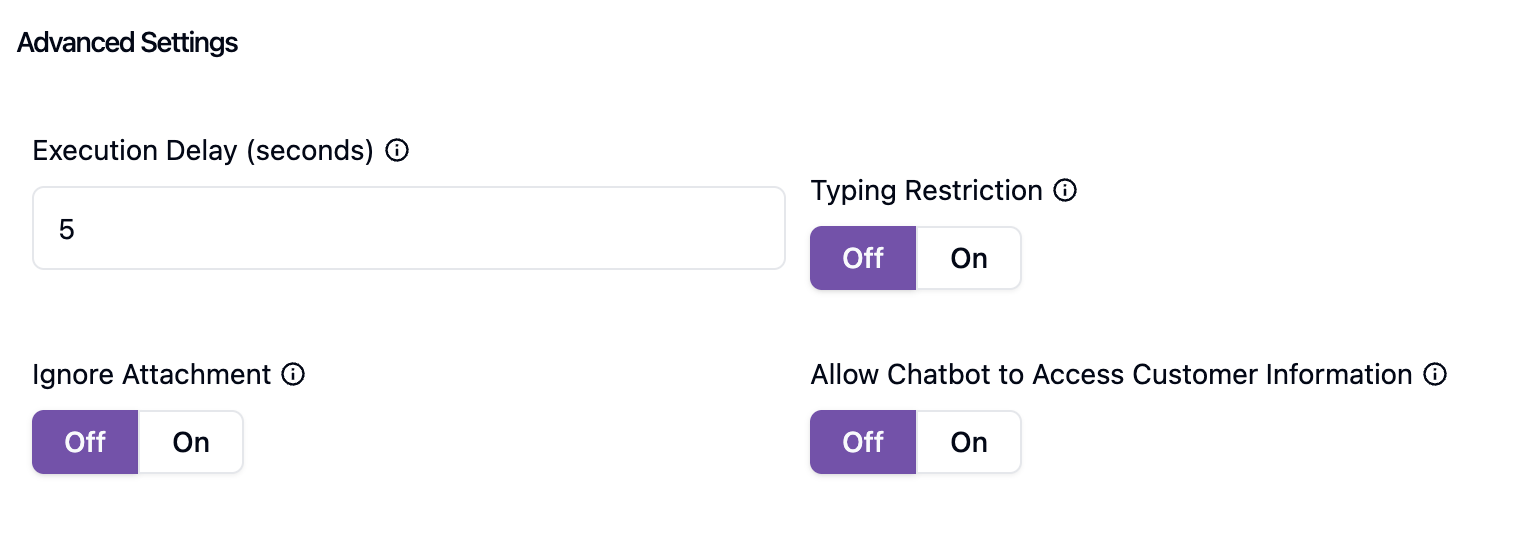
Open Advanced Settings and set the Execution Delay to 5 seconds, the minimum, for faster responses. This delay allows the system to wait briefly when customers are typing multiple chat messages in quick succession.
After completing all settings, click Save.
Enhance the Bot's Brain Using the Knowledge Base
The Persona Description is suitable for basic context. For richer and more complex knowledge, you can add Articles to your bot's Knowledge Base. These articles are retrieved using AskYura's RAG (Retrieval-Augmented Generation) system.
Step 1: Create an Article
Go to Knowledge Base > Article in the bot settings, then click Create Article.

Step 2: Fill in Article Details
Complete all required fields.
You can create a new Label directly from the label dropdown. Articles are managed using labels, allowing you to organize content and attach or detach articles as a group.
For Tags, press Enter after each tag. Tags help the RAG system recognize relevant articles by indexing both the article name and tags.

After you finish create your article, click Save at the top-right corner of the form.
Step 3: Attach the Label to the Bot
In the Article tab of the bot settings, attach the label you used for the article, then click Save.
Articles with the attached label will appear in the list.

The bot can only access articles whose labels are attached to it.
Test Your Bot
Use the AskYura sandbox chat on the right side of the bot dashboard to test your bot. You can simulate a customer by asking questions and reviewing the bot's responses, including the sources used.
Since AskYura uses LLM models, responses may vary depending on context and phrasing.
For more detailed information, please refer to this documentation
