

Start Handling Live Chat Conversations with Your Bot
Once your bot is ready, you can enable it to handle live chat conversations in real time. This guide walks you through the steps to connect your bot to the live chat widget, so customer messages are automatically assigned to your bot according to the rules you set.
Step 1: Create an Assignment Rule
Open your bot details page, go to the Assignment Rules tab, then click Create Assignment Rule. This is where you define how conversations are assigned to your bot.

Step 2: Set the Conditions
Define the conditions under which the bot should handle the conversation. These conditions determine when incoming conversations will be routed to your bot. You can add one or more conditions per rule — all conditions must be met for the rule to apply.

Available Conditions
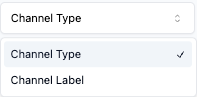
Bot assignment rules support the following two condition types:
| Condition | Description |
|---|---|
| Channel Type | Filters conversations based on the type of channel where the conversation originates. For example, you can target conversations coming from a Web Widget, or any other supported channel type. Use this when you want your bot to handle all conversations from a particular channel type regardless of which specific channel it is. |
| Channel Label | Filters conversations based on the label assigned to the channel. Every web widget or channel in AskYura can have a label (set during channel creation). This allows you to distinguish between multiple channels of the same type. For example, if you have two web widgets — one labeled "Sales" and another labeled "Support" — you can route only "Support" conversations to your bot. |
Both conditions can be used together in a single rule. When combined, the rule will only match conversations that satisfy all specified conditions.
For a deeper explanation of these condition types, refer to the Conversation Created automation guide which covers the same condition options.
Example: Typical Routing Setup
Consider a company that has two web widgets on their website — one for general customer support and one for sales inquiries. They want their support bot to handle only the support widget.
| Setting | Value |
|---|---|
| Bot | Lala (Bot Sales) |
| Condition 1 | Channel Type = Web Widget |
| Condition 2 | Channel Label = "Customer Support" |


With this configuration, only conversations originating from the web widget labeled "Customer Support" will be assigned to the bot. Conversations from the "Sales" widget will follow the default assignment behavior (e.g., routed to a human agent or another bot with its own rule).
If the company later wants to also route sales conversations to a different bot, they can create a separate assignment rule on that bot with Channel Label = "Sales".
Step 3: Submit and Activate

Click Submit & Activate to save the rule and activate it.
You can view the assignment rules associated with this bot.

What Happens Next
Once the assignment rule is active, here is what happens when a customer starts a conversation:
- A new conversation is created — A customer sends a message through one of your connected channels (e.g., the web widget on your website).
- The system evaluates assignment rules — AskYura checks the conversation against all active assignment rules configured across your bots. It evaluates the conditions (Channel Type, Channel Label) to find a matching rule.
- The conversation is assigned to your bot — If the conversation matches the conditions in your rule, it is automatically assigned to your bot. The bot begins handling the conversation immediately using its configured Knowledge Base and Settings.
- No match means no bot assignment — If the conversation does not match any active assignment rule, it will not be handled by a bot. Instead, it follows your default workflow — typically landing in the general queue for a human agent to pick up, or being routed by automation rules if you have those configured.
You can view all active rules and their status from the Assignment Rules tab on your bot details page. You can update, deactivate, or delete any rule at any time if your routing needs change.
You can create multiple assignment rules for the same bot with different conditions. This allows you to route conversations from various channels to the same bot while maintaining granular control over when the bot is activated.
Troubleshooting
If your bot is not handling conversations as expected, check the following:
| Issue | Solution |
|---|---|
| Bot does not respond | Verify that the assignment rule is activated and that the conditions match the incoming conversation. Make sure Channel Type and Channel Label values are correct. |
| Wrong bot responds | Check if multiple assignment rules across different bots overlap. If two bots have rules matching the same channel, the system may assign the conversation to an unintended bot. Make your conditions more specific using Channel Label. |
| Bot responds incorrectly | Review the bot's Knowledge Base articles and Settings to ensure it has the right information and persona. |
| Conversations go to human agent instead | Confirm that the Channel Type and Channel Label in your rule match the actual channel configuration exactly. Check the channel's settings to verify its label. |
| Rule is not triggering | Make sure the rule status is Active. An inactive rule will not match any conversations. Also verify that the channel the customer is using matches the conditions you set. |
Once the assignment rule is active, your bot will start handling live chat conversations that meet the defined conditions. You can update or disable the rule at any time if your routing needs change. For more information, you can check Assignment Rules Page.
