

Ticket Attributes
Ticket Attributes let you add your own fields to tickets, so every ticket can hold the details your team needs to resolve it. For example, an online store can add an Order ID and a Delivery Date, and a SaaS company can add a Subscription Plan and an Account URL.
You set up ticket attributes once in Settings. Agents then fill them in when they create a ticket, from the Tickets page or from a chat, and can update them later in the ticket details.
Setting Up Ticket Attributes
To open the Ticket Attributes page, click Settings, then select Ticket Attributes under Data.
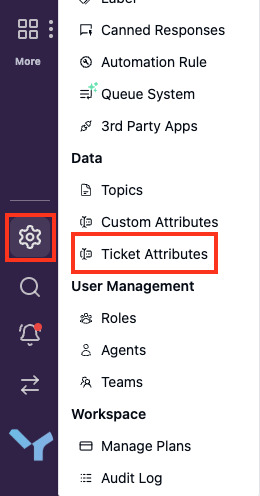
The page has two columns. The left column shows the field types you can use. The right column shows the attributes in your workspace, in the order agents see them. If your workspace has no ticket attributes yet, the right column is empty.
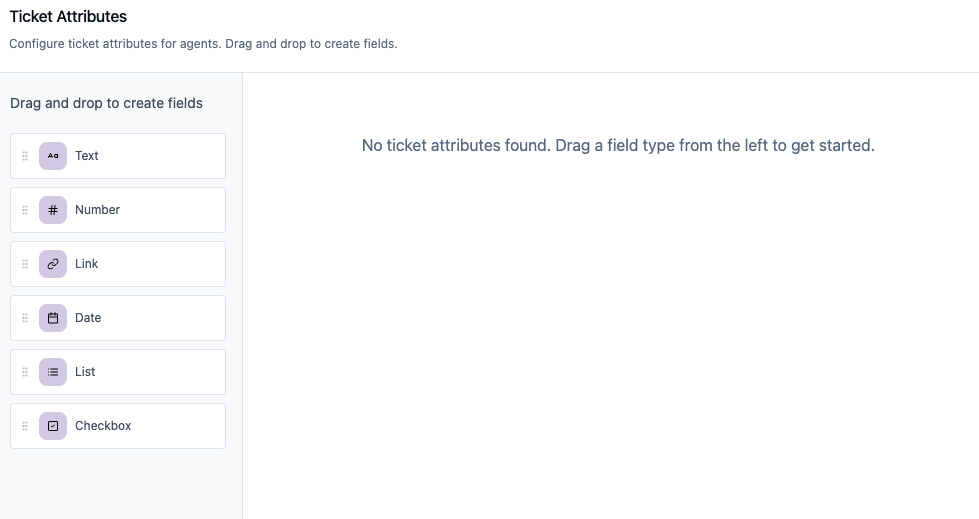
Field Types
| Type | Description |
|---|---|
| Text | A single line of text. Good for short values such as an order ID. |
| Number | Numbers only. Good for values such as a quantity or a refund amount. |
| Link | A full URL that starts with http:// or https://. |
| Date | A calendar date, such as a delivery date. |
| List | A dropdown with options that you define. Agents select one option. |
| Checkbox | A yes/no value, such as "Warranty Claim". |
Creating a Ticket Attribute
-
Drag a field type from the left column and drop it into the right column, at the position where you want it.
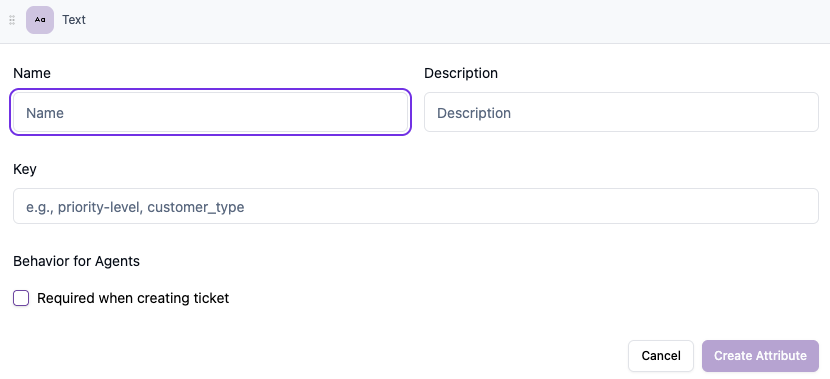
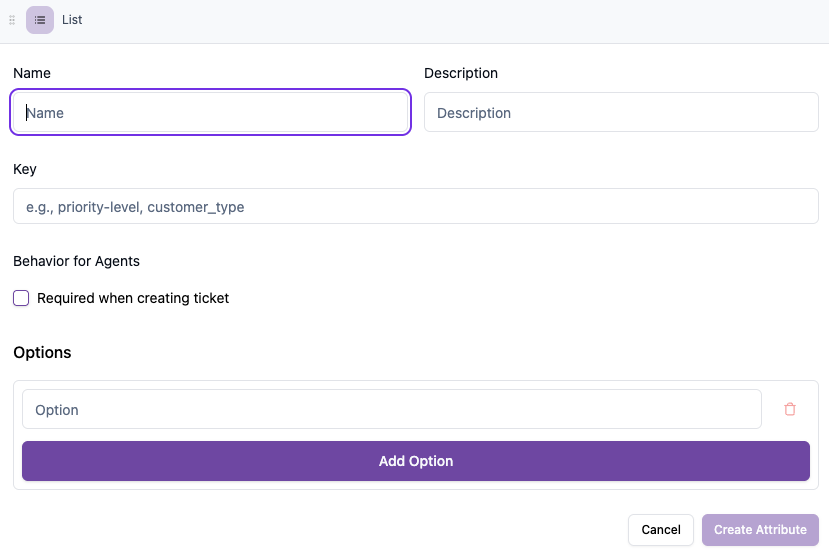
A form opens for the new attribute. Text, Number, Link, Date, and Checkbox attributes use the same form. A List attribute also has an Options section.
-
Enter a Name. Agents see this name on the ticket (for example, "Order ID"). The name can have up to 50 characters.
-
Check the Key. AskYura fills in the key from the name, and you can change it. The key is a unique identifier, for example
order-id. It can contain only lowercase letters, numbers,-, and_. -
(Optional) Enter a Description to tell agents what to put in this field. The description can have up to 255 characters.
-
For a List attribute, such as "Customer Type", add the options under Options. Click Add Option to add more. A List attribute needs at least one option.
-
Under Behavior for Agents, select Required when creating ticket if agents must fill in this attribute before they can create a ticket.
-
Click Create Attribute.
You cannot change the key after you create the attribute, because tickets use the key to refer to it. Choose a clear key before you click Create Attribute.
Editing a Ticket Attribute
Each attribute in the list shows its name, key, and type. Click an attribute to open it. You can change its name, description, the options of a List attribute, and the Required when creating ticket setting, then click Save Changes. The key and type are shown but cannot be changed. Tickets keep the values they already have for this attribute, because its key stays the same.
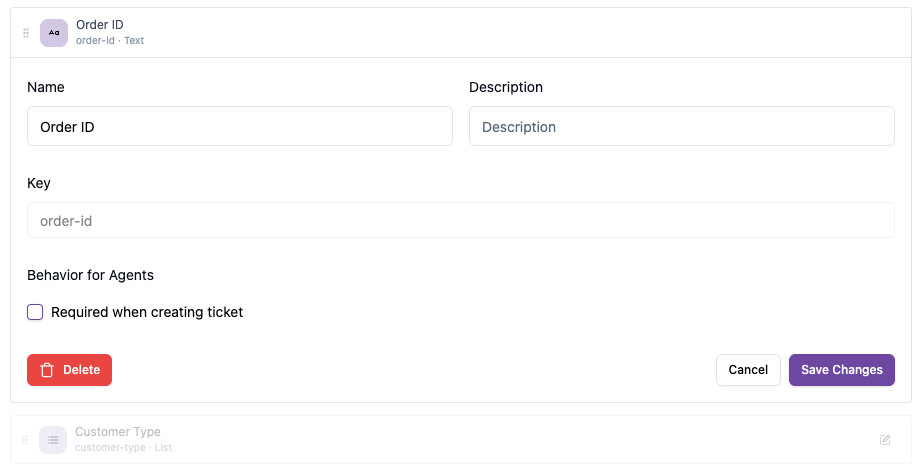
For a List attribute, you can remove an option and restore it again before you save.
Changing the Order
Drag an attribute by its handle to move it up or down. AskYura saves the new order immediately. Agents see the attributes in this order when they create a ticket.
Deleting a Ticket Attribute
Open the attribute and click Delete at the bottom left of the form, then confirm.
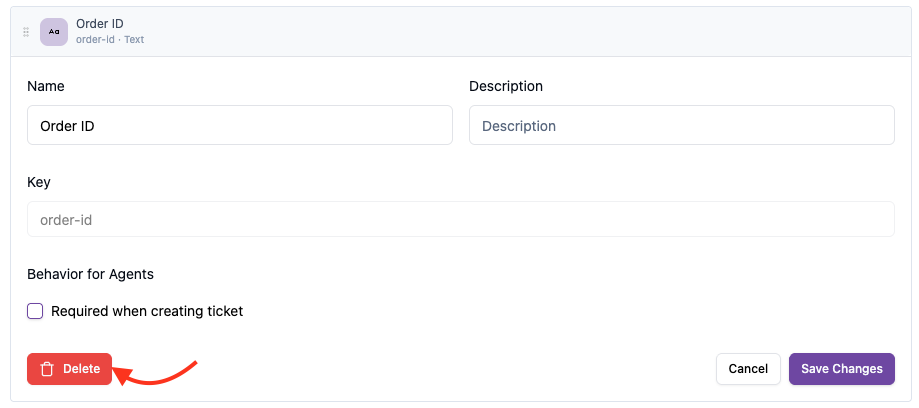
When you delete a ticket attribute:
- All tickets lose the value they hold for this attribute.
- Agents no longer see it when they create or view tickets.
You cannot undo this action.
Filling In Attributes When Creating a Ticket
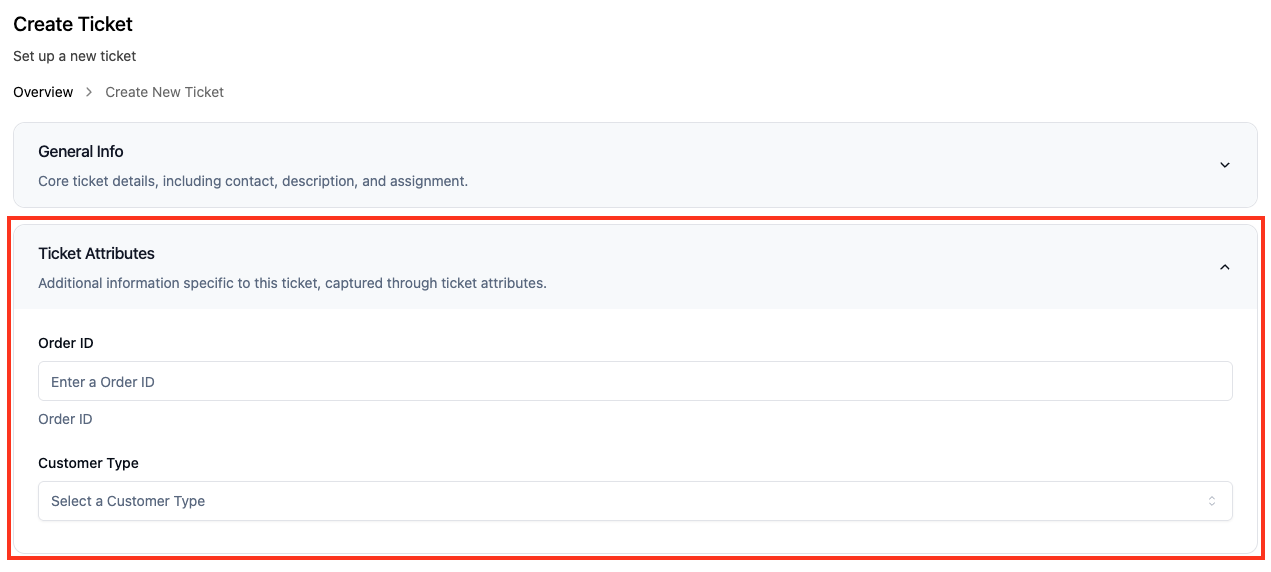
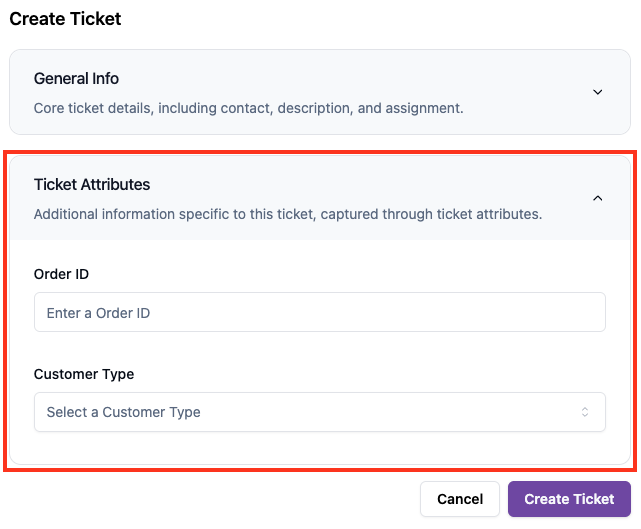
When your workspace has ticket attributes, the create ticket form has two sections:
- General Info → The contact, subject, description, attachments, assignee, and labels.
- Ticket Attributes → Every ticket attribute you've created in Ticket Attributes settings.
You do not need to add attributes to the form yourself. Each ticket attribute you create appears in the form automatically, in the same order as on the Ticket Attributes settings page. To change the order in the form, change the order in settings.
Attributes marked Required when creating ticket must have a value. If a required attribute is empty when you save, AskYura opens the section and scrolls to the field so you can complete it.
From the Tickets Page
-
Go to Tickets and click Create New Ticket.
-
Fill in the General Info section. Refer to Create Ticket for details.
-
Expand the Ticket Attributes section and fill in the attributes.
-
Click Save.
From a Chat
-
In an active conversation, click the three-dot icon (more) and select Create Ticket.
-
Fill in the General Info section. AskYura fills in the contact and a default subject for you. You can also set the ticket's labels.
-
Expand the Ticket Attributes section and fill in the attributes.
-
Click Create Ticket.
Managing Attributes in Ticket Details
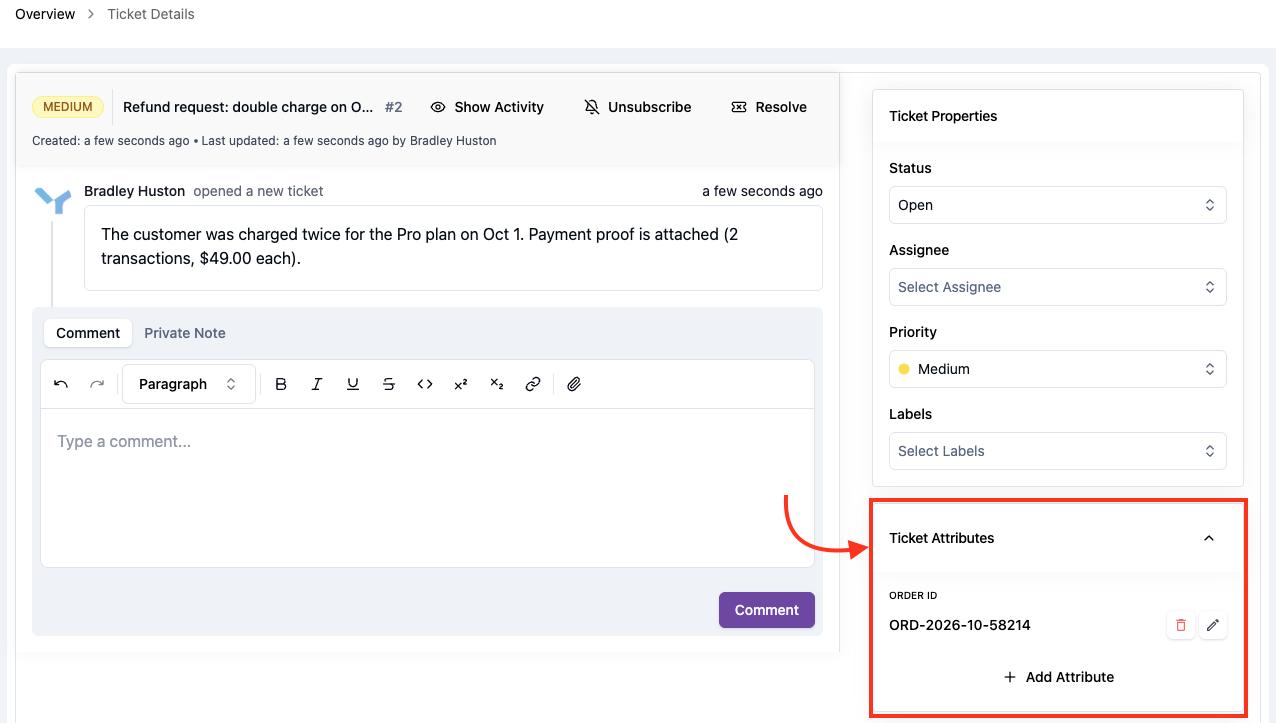
Agents can view and update a ticket's attributes at any time after the ticket is created. Open a ticket to see its Ticket Attributes section on the right, below Ticket Properties. The section shows the attributes that have a value on this ticket, and you can add more attributes from there.
Adding an Attribute Value
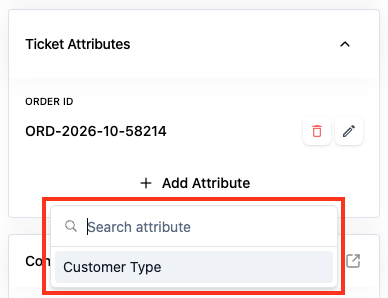
- Click Add Attribute.
- Search for the attribute and select it.
- Enter the value and click Add.
If the ticket has no attribute values yet, the section shows No attributes added, with an Add Attribute button.
Editing an Attribute Value
- Click the edit icon next to the attribute.
- Change the value.
- Click the check icon to save, or the close icon to cancel.
Removing an Attribute Value
Click the delete icon next to the attribute. The attribute and its value are removed from this ticket. The attribute stays available in your workspace, and you can add it again with Add Attribute.
You cannot remove the value of an attribute marked Required when creating ticket. You can still edit it.
Permissions
- To set up ticket attributes in Settings, a role needs the Manage Ticket Attributes permission. Refer to Roles & Permissions.
- To add, edit, and remove attribute values in the ticket details, a role needs the Update Ticket Attributes permission. Agents without it can still see the values.
Start with a small set of attributes that your team uses on most tickets. Mark an attribute as required only when every ticket needs it, so agents can create tickets quickly.
