

Topic & Attributes
Topics and Attributes help structure customer conversations and data more effectively. Topics guide customers with relevant questions either during pre-chat or in the middle of an ongoing conversation, while Attributes store additional information needed to support workflows and personalization.
Topic
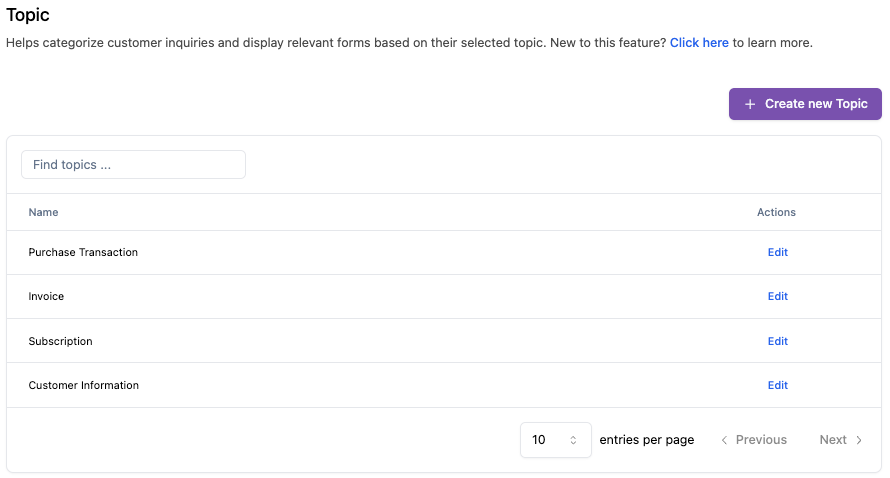
Managing a topic helps you collect the right information from customers before a conversation starts. Topics allow you to organize inquiries, customize form fields, and integrate with external systems through webhooks. You can customize the data you want to capture by setting the available attributes.
Setup Topic
General Topic
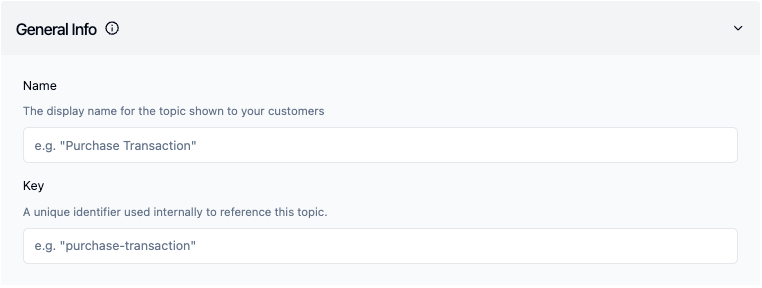
Defines the basic identity of a topic. It includes what customers will see and how the system will reference the topic internally.
Name: The display name of the topic. It will be visible to customers in your live chat widget when they're asked to choose a topic
Key: Unique identifier used internally to reference this topic. If you include spaces in the key, the system will automatically convert it to hyphens ("-").
Attributes

You can define the form fields that customers will need to fill out when a topic is used. There are 3 standard attributes, name, phone number, and email. If you need more attributes, you can created it on Custom Attributes menu. After selecting the attributes you can configure display name and checkbox to mark an attribute as required.
Advanced Settings

Advanced settings allows you to define how the system should respond when a customer submits their answers to a topic during an active conversation.
Webhook URL: Enter a webhook URL to send the customer's form responses to your external system. This is useful for triggering actions, updating systems, or storing data when a topic is used in the middle of a chat.
Response Text: Set a confirmation message that will be shown to the customer after they submit the form. This helps confirm that their input has been received.
Attributes

Custom Attributes allows you to create and store additional information that standard fields don't capture. These attributes help you track essential data such as customer preferences, order details, or other relevant information that enhances your support and workflow processes.
Setup Attributes
Choose the Attribute Type

There are 2 types of attributes, namely contact attributes and conversation attributes.
-
Contact Attributes
This attributes are used to store information that is specific to a customer and remains consistent across multiple interactions. These will update the customer's contact details in your system when submitted.
-
Conversation Attributes
This attributes are used to store information specific to a particular interaction or conversation with a customer. These attributes help categorize and manage the current support session.
Add a Field Format
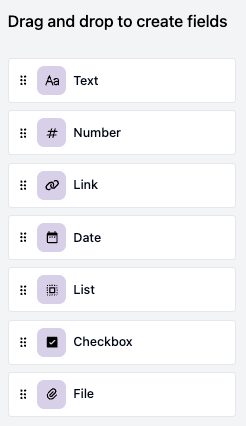
Drag and drop the desired field format from the left panel into the configuration area on the right. Below are the available formats and how they can be used:
- Text: A single line text field. Accepts letters, numbers, and symbols. Best for brief inputs.
- Number: Accepts numeric input only. Ideal for tracking values that require calculations or filtering.
- Link: Stores a full URL. The value must include the proper format, such as
http://orhttps://. - Date: Allows customers to select a specific calendar date.
- List: A dropdown with predefined single select options. One level only (no nested choices).
- Checkbox: A single checkbox used to represent a yes/no or agree/disagree response. Suitable for simple confirmations.
- File: A field type that allows customers to upload files.
Fill Out the Attribute Details
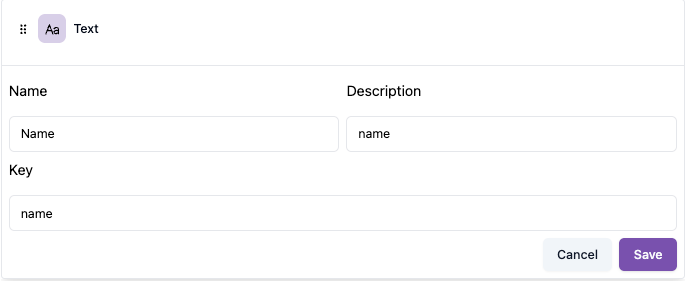
- Name: This is the label shown in the interface.
- Key: A unique identifier used internally for this attribute. It must not conflict with existing keys across contact and conversation attributes.
- Description: Briefly describe the purpose of this attribute so your team can understand its use.
