

Fill with AI
Fill with AI lets you configure your bot by chatting with an AI assistant. Instead of editing each field yourself, describe what you want to change, and the assistant updates the bot's settings for you.
You can use it to update:
- Persona → Adjust the bot's tone and how it talks to customers
- Knowledge → Add or change information about your business
- Notify Human Agent rules → Change when the bot hands off a conversation to a human agent
How to Use Fill with AI
-
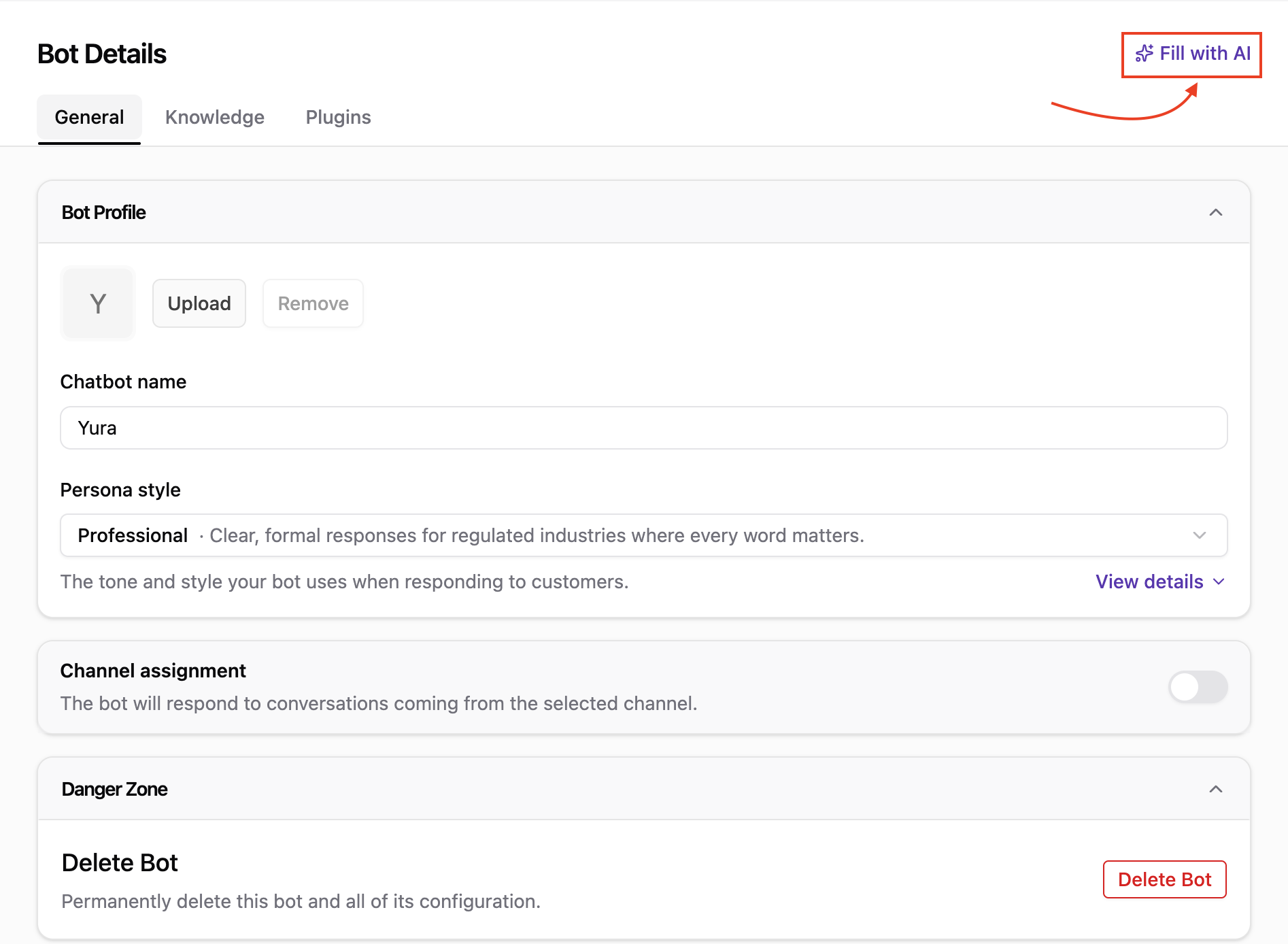
On the Bot Details page, click Fill with AI at the top right. It sits above the tabs and applies to all of them, so you can update any part of the bot's configuration no matter which tab you're on.
-
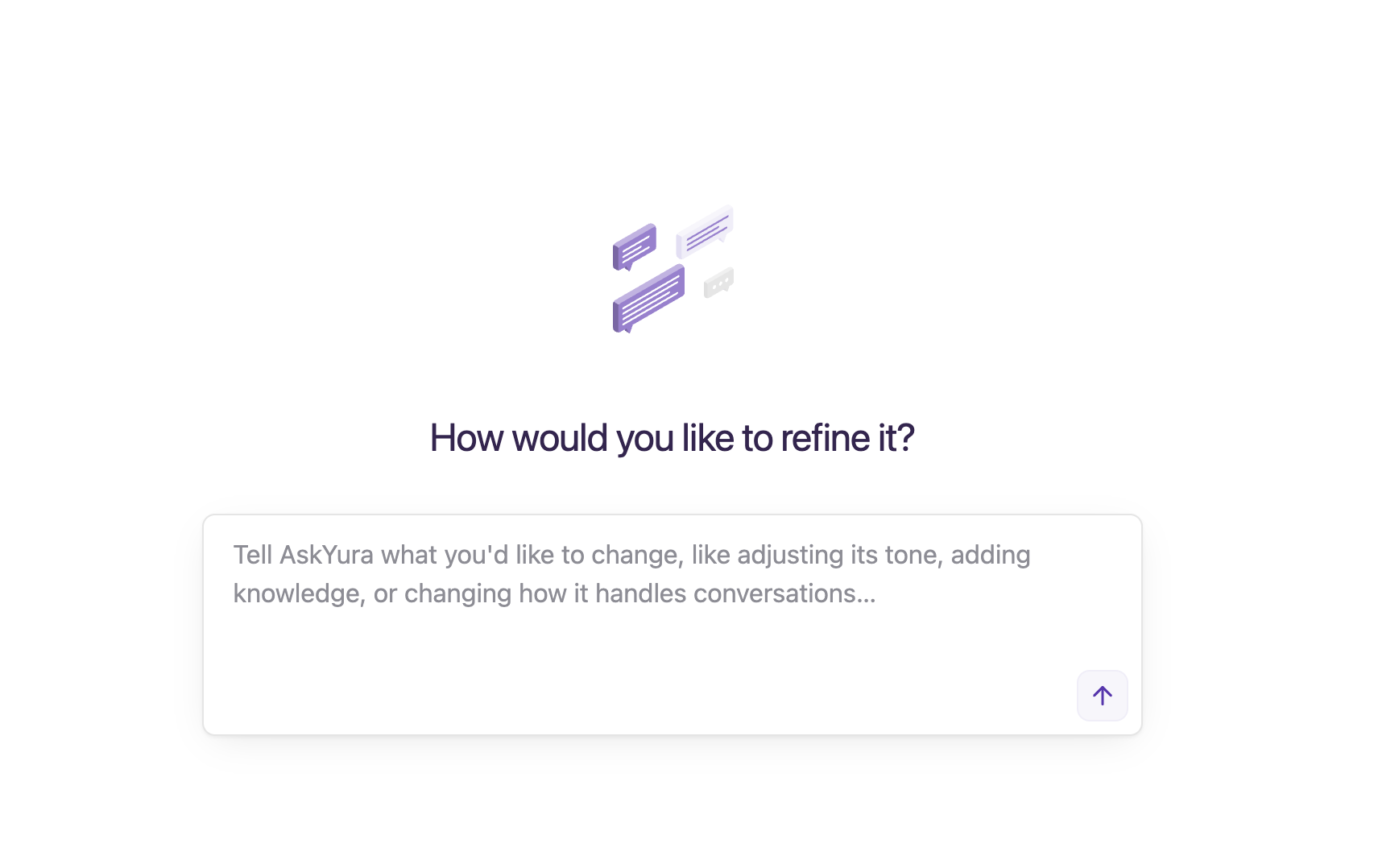
In the How would you like to refine it? field, describe the change you want to make, then send your message.
-
The assistant reviews your bot's current configuration, applies the change, and confirms what it updated. You can keep chatting to make further adjustments.
Saved automatically:
Any bot configuration changes made with Fill with AI are saved
automatically, so you don't need to click Save changes. If you're not
happy with a change, just ask the assistant to revert it, for example
Undo the last change.
Example
In the example below, the user asks the AI assistant to update the bot so it hands off the conversation to a human agent whenever a customer requests a refund or asks to speak with a human agent.
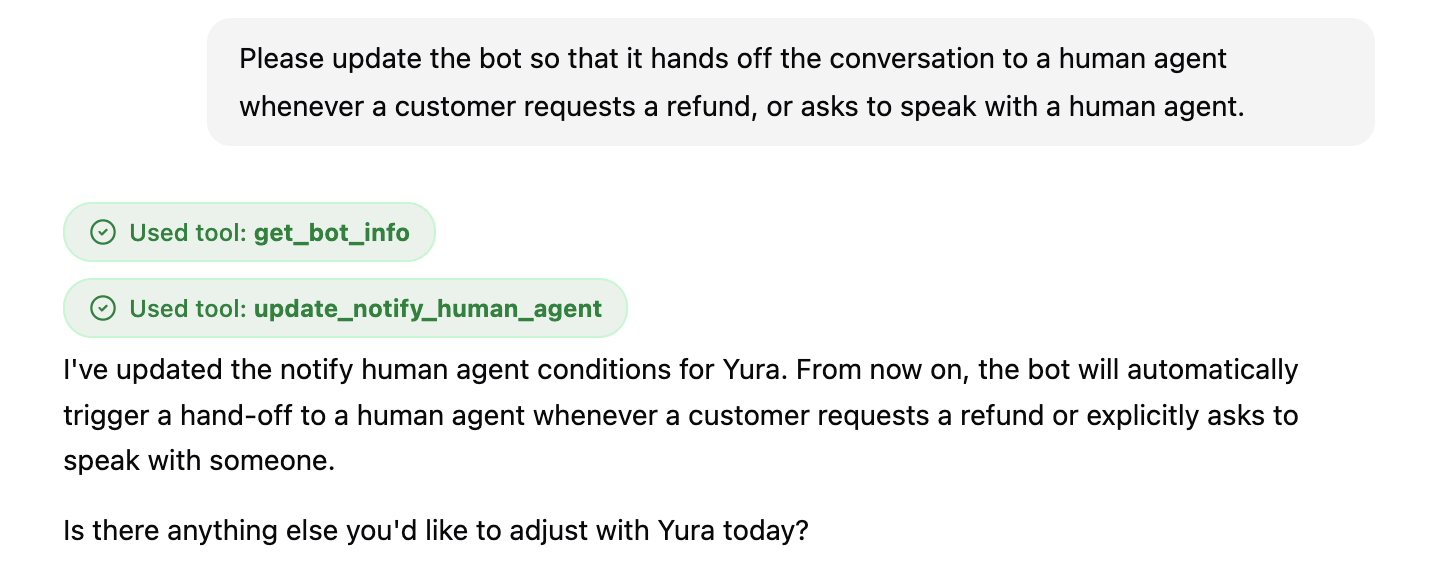
The assistant first reads the bot's current settings, then updates the escalation rules of the Notify Human Agent plugin. Each step the assistant takes is shown as a Used tool label above its reply.
Example Requests
Here are some requests you can try:
Add our new store in Austin, Texas, open daily from 9 AM to 9 PM, to the business description.Make the bot sound more friendly and use emoji occasionally.Add our return policy: items can be returned within 30 days with a receipt for a full refund.
Tip:
Describe what you want in your own words, and the assistant will apply it to
the right part of your bot. After the update, test the bot in the Chat
Sandbox.
