

General
The General tab lets you set up your bot's profile, how it talks to customers, and which channel it handles.
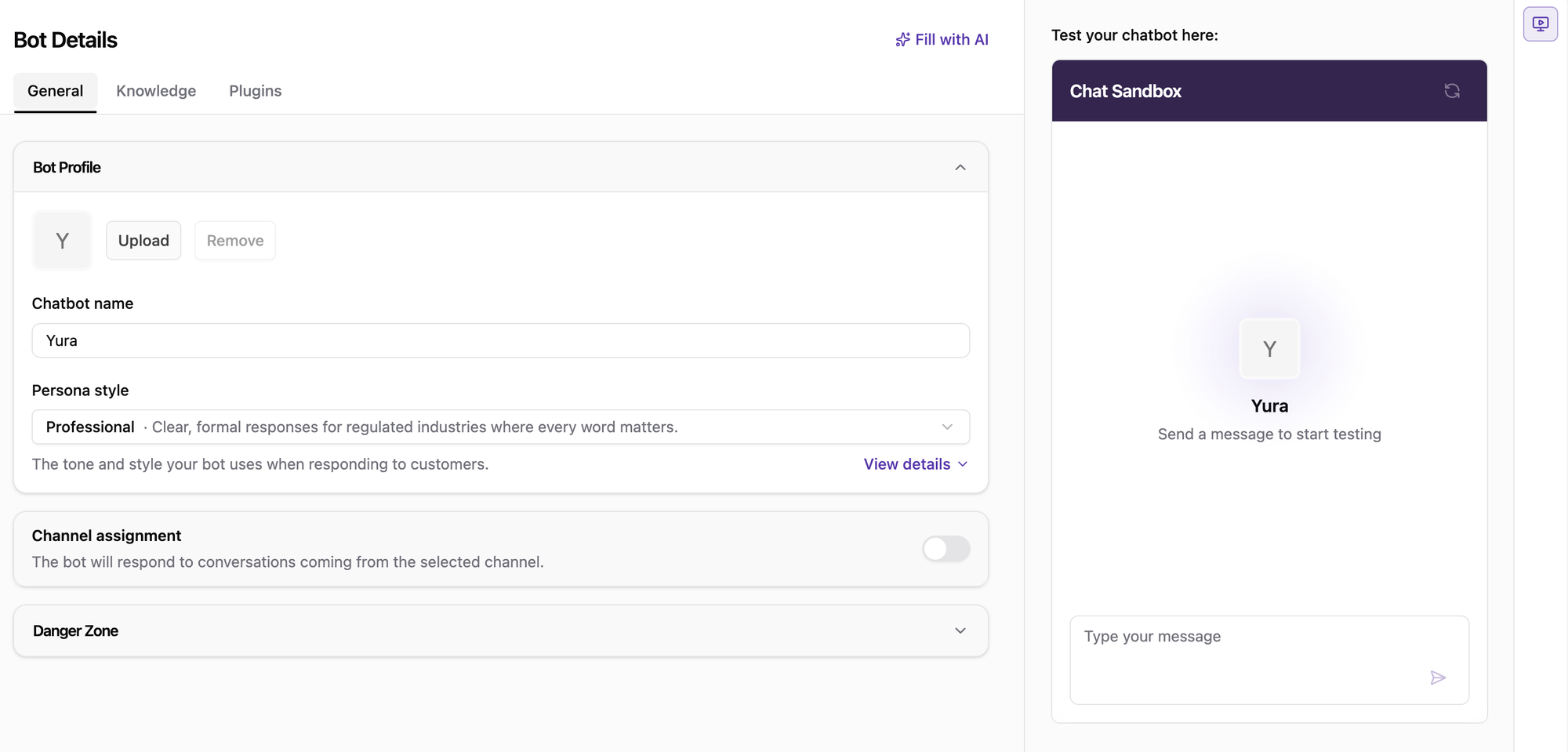
Bot Profile
Avatar
Click Upload to set a profile picture for the bot, or Remove to clear it. If no picture is set, the bot uses the first letter of its name.
Chatbot Name
The name you entered when creating the bot. It is used to identify the bot in your workspace and is shown to customers in the chat. You can change it here at any time.
Persona Style
The persona style defines the tone and style your bot uses when responding to customers. New bots use the Professional style by default. To change it, select a style from the dropdown.
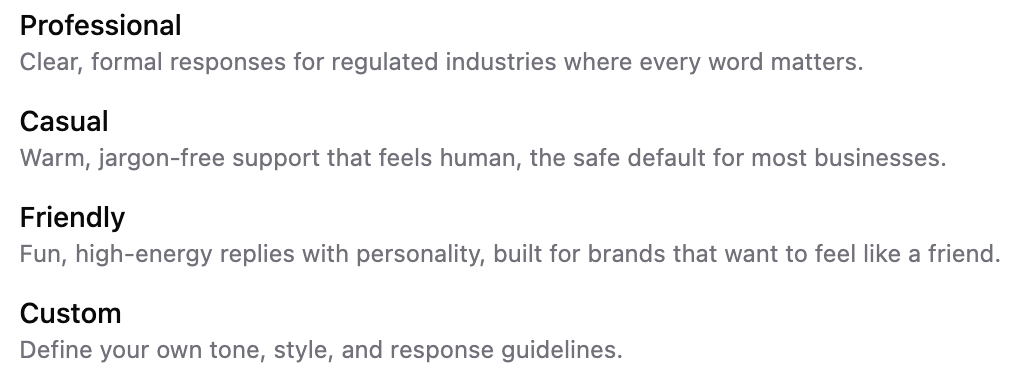
The following persona styles are available:
| Style | Best For |
|---|---|
| Professional | Clear, formal responses for regulated industries where every word matters. |
| Casual | Warm, jargon-free support that feels human. A safe default for most businesses. |
| Friendly | Fun, high-energy replies with personality, built for brands that want to feel like a friend. |
| Custom | Your own tone, style, and response guidelines. |
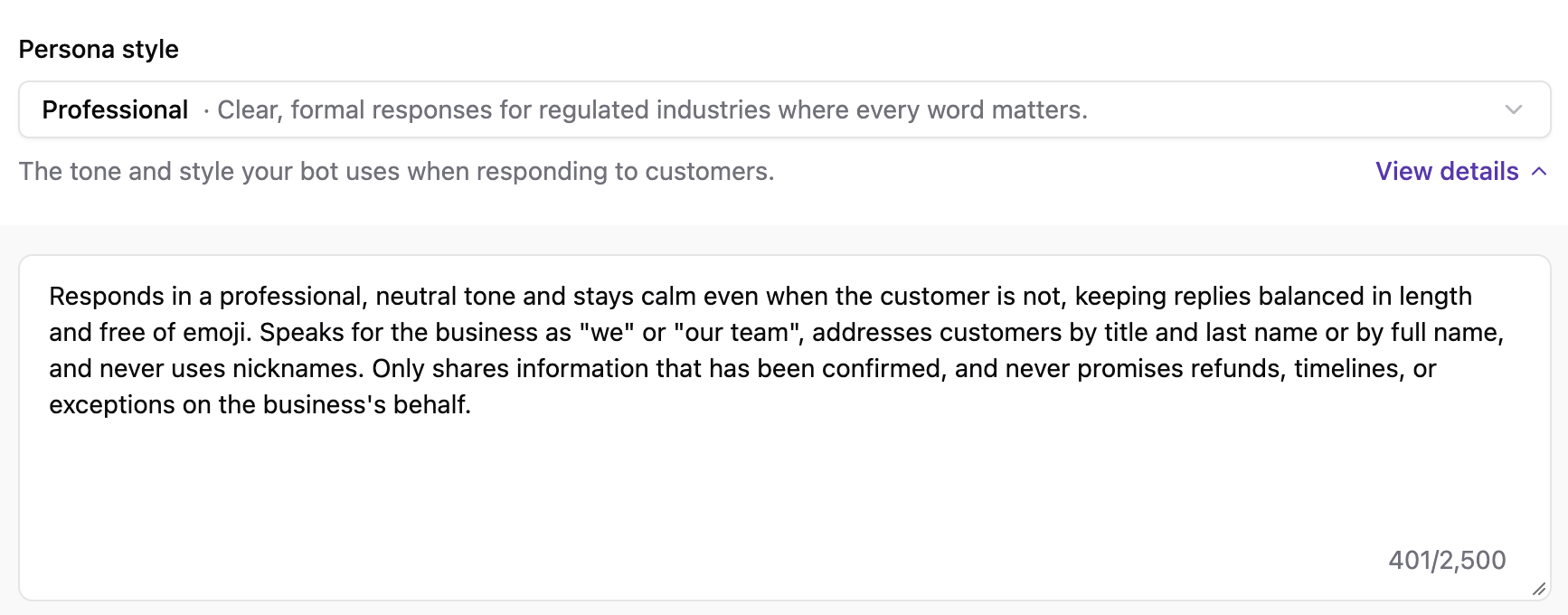
View the Style Details
Click View details to see the full guidelines behind the selected style. These guidelines describe exactly how the bot behaves, such as its tone, reply length, emoji use, and how it addresses customers.
Create a Custom Persona Style
If none of the preset styles fit your brand, select Custom and write your own guidelines in the text field. The guidelines can contain up to 2,500 characters.
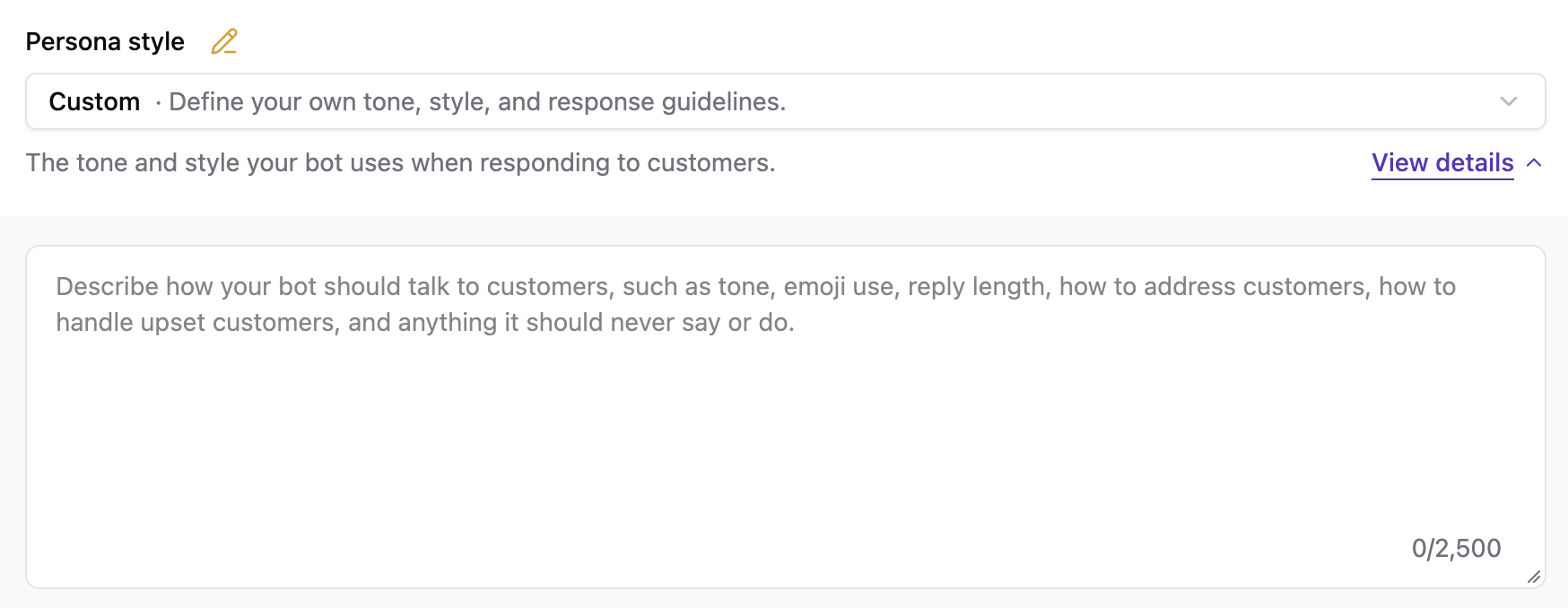
A good custom persona style describes how your bot should talk to customers, including:
- Tone → For example, formal, warm, or playful
- Emoji use → Whether the bot should use emoji, and how often
- Reply length → Short and direct, or detailed
- How to address customers → For example, by first name, full name, or title
- How to handle upset customers → For example, stay calm and apologize before offering help
- What to avoid → Anything the bot should never say or do
Example:
Responds in a warm, upbeat tone and keeps replies short. Uses emoji occasionally. Addresses customers by their first name. When a customer is upset, apologizes first and offers a clear next step. Never promises refunds or delivery dates.
Tip:
Not sure where to start? Select one of the preset styles and click View
details to read its guidelines. Use them as a reference when writing your
own.
Channel Assignment
Channel assignment lets you choose which channels the bot will handle. Turn on the toggle and select the specific channels you want the bot to respond to. The bot will only respond to conversations coming from the selected channels.
A bot without any assigned channel won't respond to customers, so you can safely set it up and test it in the Chat Sandbox first.
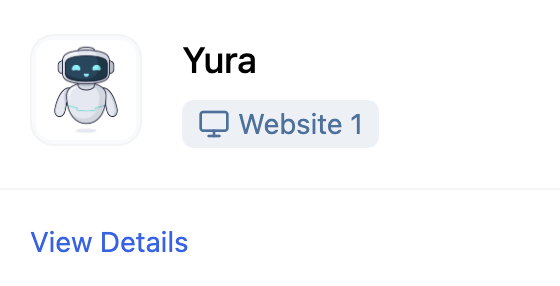
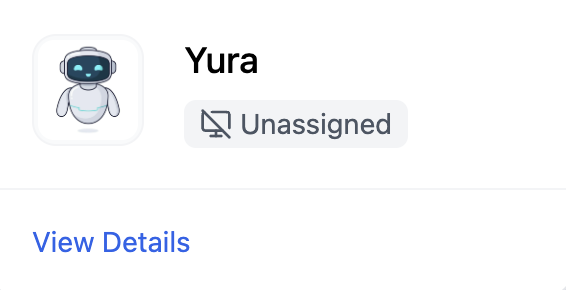
On the bot list, each bot card shows its channel status:
- Channel name (e.g.,
Website 1) → The bot is assigned to that channel and responds to its conversations - Unassigned → The bot isn't assigned to any channel yet
Different from the legacy bot:
In the legacy bot, Assignment Rules route
conversations by channel type or channel label. In the latest bot, you can
pick the exact channels the bot should handle.
Avoid overlapping with legacy bots:
If a channel is assigned to both a latest bot and a legacy bot, conversations
from that channel will be randomly assigned to either bot. Before assigning a
channel to your latest bot, switch to Legacy, open each legacy bot, and
check its Assignment Rules tab. Remove any rule that covers the same
channel. Learn more on the Assignment Rules
page.
Danger Zone
Expand the Danger Zone section to delete your bot. Click Delete Bot to permanently delete the bot and all of its configuration.

This action cannot be undone:
Once deleted, the bot and its configuration cannot be restored. Make sure you
no longer need the bot before deleting it.
