

Overview
The Latest Bot is a faster, more efficient way to answer your customers. You can set it up in minutes, and it gives more accurate answers based on your own content.
It introduces a simpler setup flow and a refreshed interface for creating and managing your bots.
Preview:
The Latest Bot is currently in preview. More features are being added over
time.
The latest bot uses the same permissions as the legacy bot, so anyone who can view, create, update, or delete legacy bots can do the same with latest bots. Learn more on the Roles and Permissions page.
Switch to the Latest Bot Experience
By default, the Bot menu shows the legacy bot experience. To view and create bots with the new version, switch to the latest experience first.
- Go to the Bot menu.
- In the banner at the top of the page, click Latest.
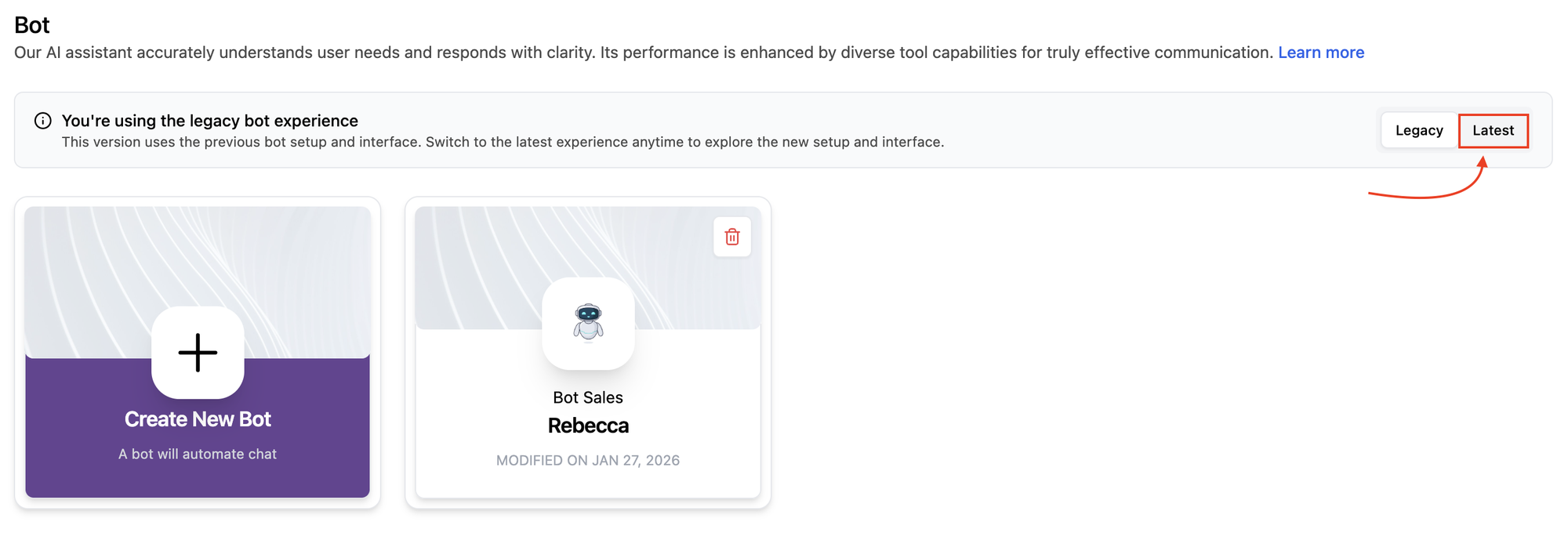
The page will switch to the latest bot experience and show the list of bots created with the new version. If you haven't created any bots yet, the page will show an empty state.
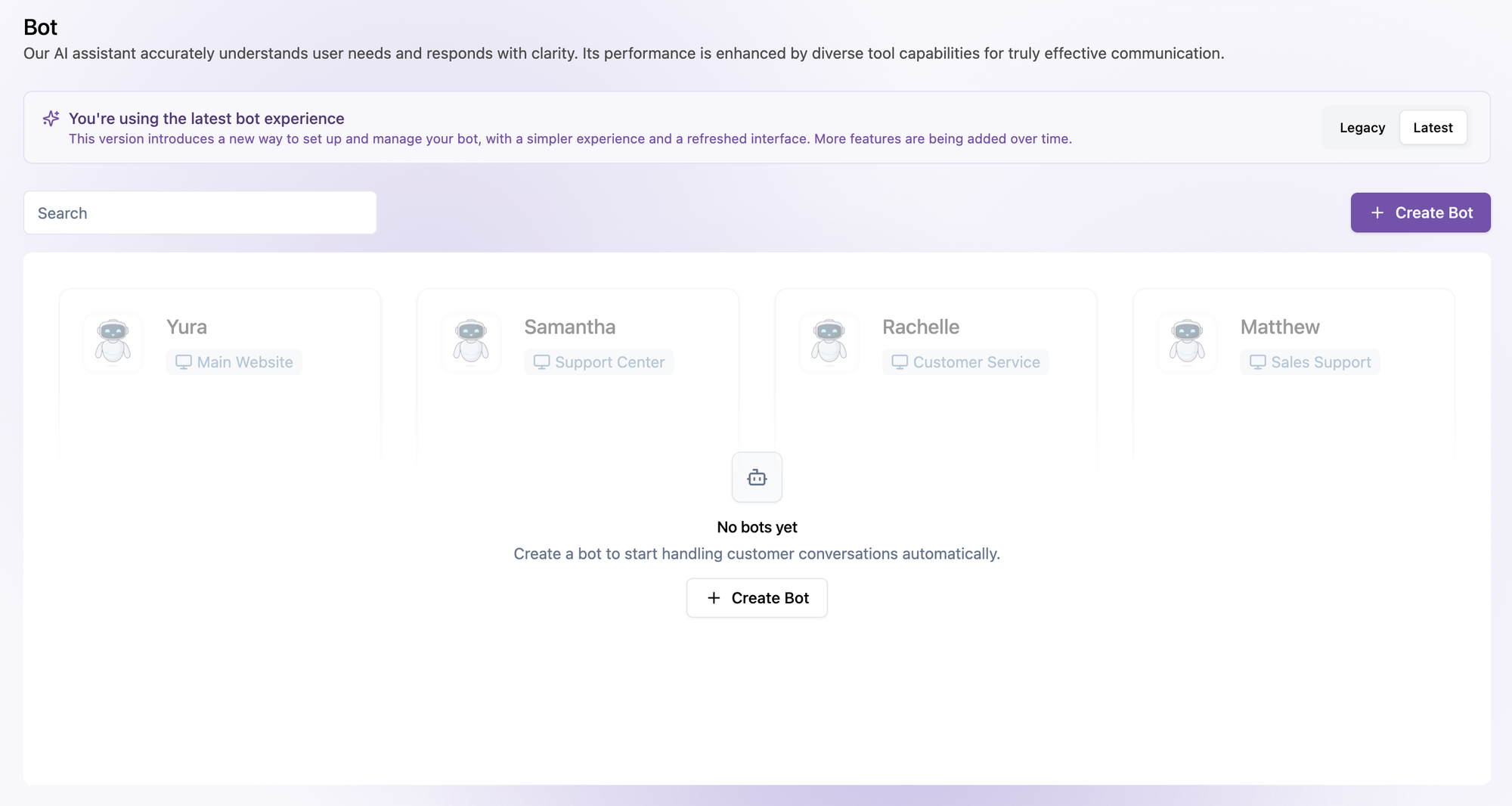
You can switch back to the legacy experience at any time by clicking Legacy in the same banner.
Using both legacy and latest bots:
If a legacy bot and a latest bot handle the same channel, conversations will
be randomly assigned to either bot. See Channel
Assignment to avoid overlapping
channels.
Create a New Bot
To create a bot with the latest version, click the + Create Bot button at the top right of the bot list. If your list is still empty, you can also click the + Create Bot button in the center of the page.
Enter the Chatbot Name
A Create Bot dialog will appear. Enter a name for your bot in the Chatbot Name field, then click Continue.
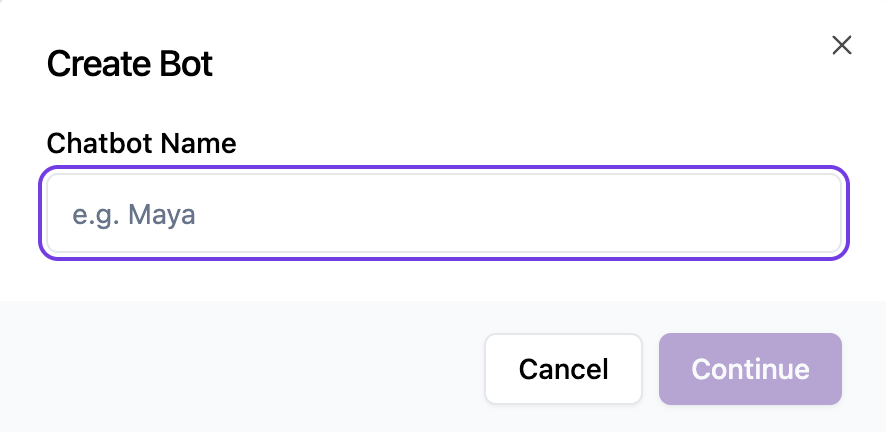
This name is used to identify the bot in your workspace, and it is also shown to customers as the bot's name in the chat. Choose a name that works well in both places, such as Maya.
Different from the legacy bot:
In the legacy bot, you set a separate Name for internal use and a
Persona Name that customers see. In the latest bot, a single Chatbot
Name is used for both.
Default Settings
After you click Continue, the bot is created with the following default settings:
- Persona style → Professional
- Business Description → Empty
- Notify Human Agent → Enabled, with a default escalation prompt
- Channel assignment → Off, so the bot is Unassigned and doesn't respond to customers yet
You can change any of these settings on the Bot Details page.
Configure Your Bot
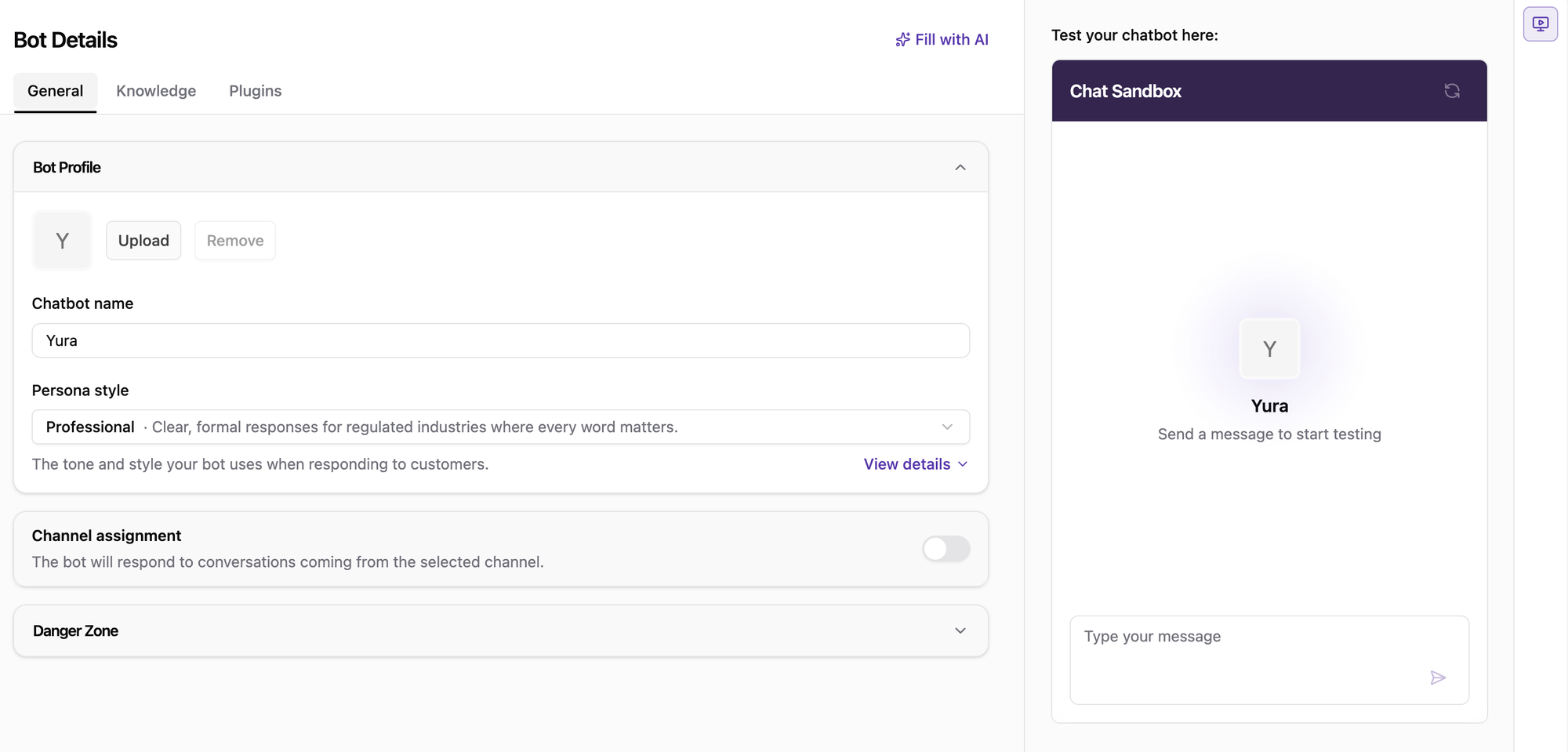
After you create the bot, the Bot Details page opens. Bot configuration is organized into three tabs:
-
General
The bot's profile, persona style, and channel assignment.
Learn more on the General page.
-
Knowledge
Information about your business that the bot uses to answer customers.
Learn more on the Knowledge page.
-
Plugins
Extra capabilities the bot can use during conversations, such as handing off to a human agent.
Learn more on the Plugins page.
You can also click Fill with AI at the top right to update the bot's configuration by chatting with an AI assistant. Learn more on the Fill with AI page.
On the right side of the page, the Chat Sandbox lets you test your bot by sending messages as a customer would. Learn more on the Chat Sandbox page.
Save Your Changes
When you edit the bot's settings manually, a floating You have unsaved changes. bar appears at the bottom of the page, so you can easily see when there are changes to save. A pencil icon also appears next to each field you have edited.
Click Save changes to apply your edits, or Reset changes to discard them.
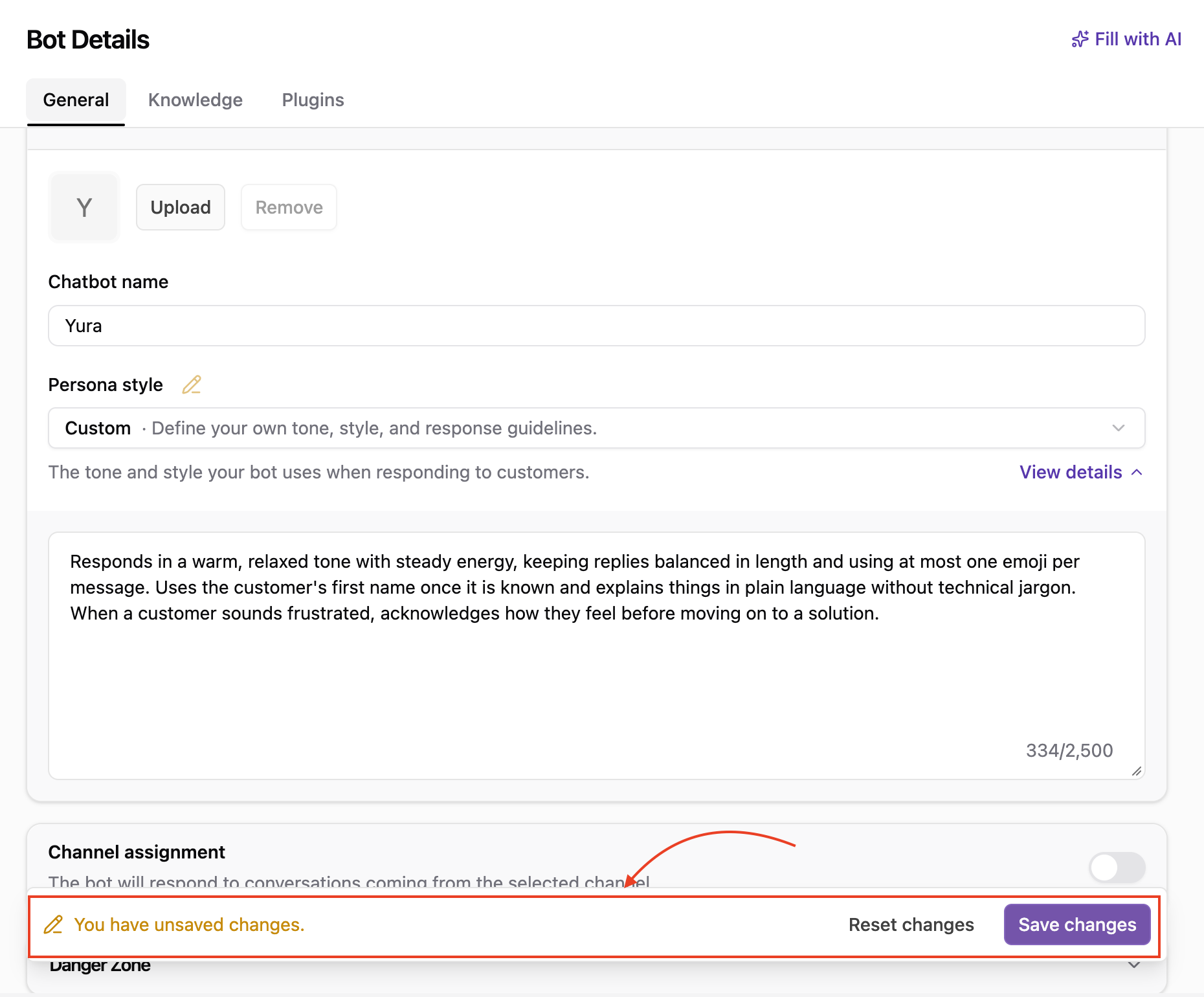
If you try to switch to another tab before saving, an Unsaved Changes dialog will appear:
- Keep Editing → Close the dialog and stay on the current tab, so you can save your changes
- Discard Changes → Leave the tab and discard your unsaved edits
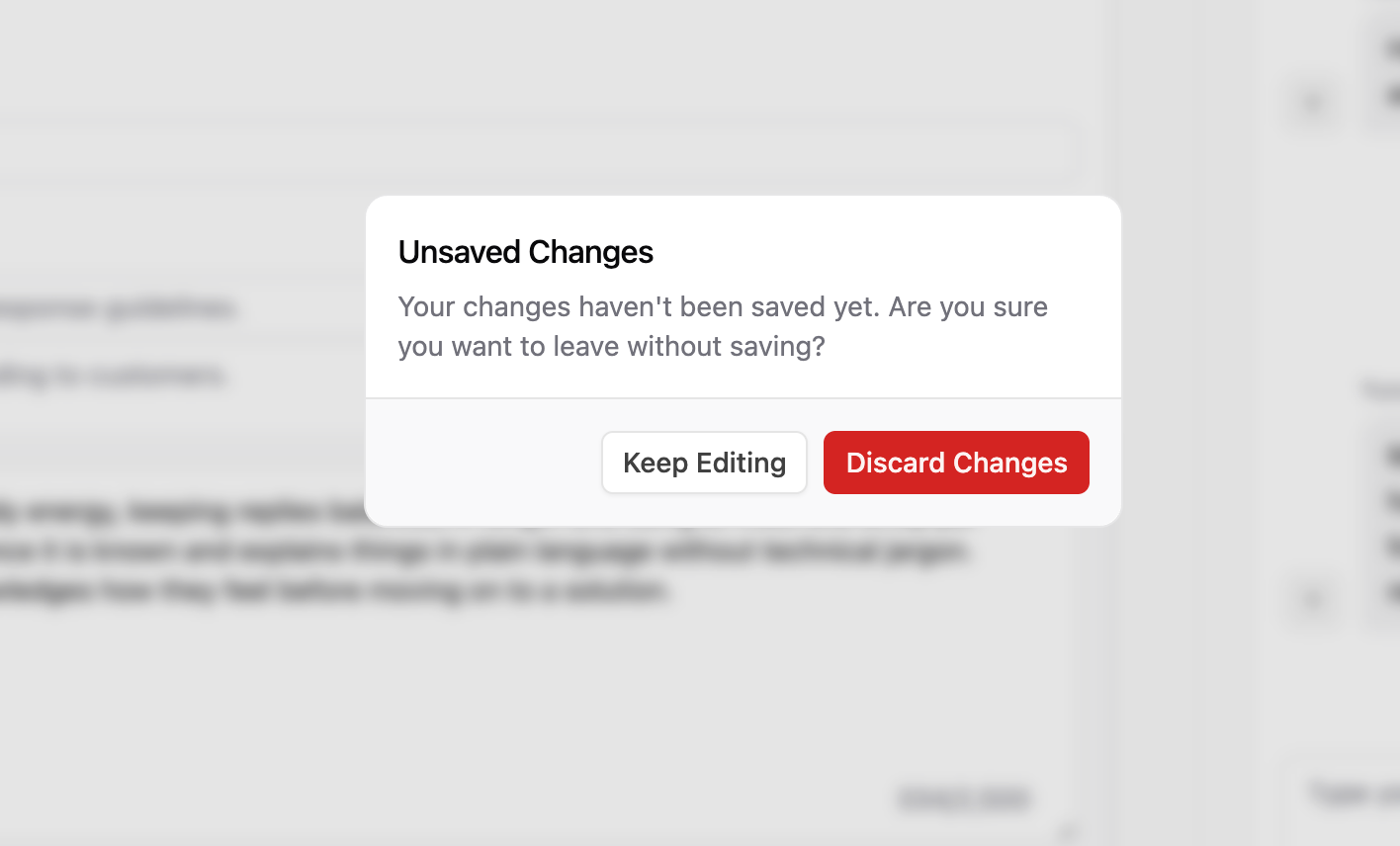
Any bot configuration changes made with Fill with AI are saved automatically, so you don't need to click Save changes.
Go Live
A new bot doesn't respond to customers until you assign it to a channel. Follow these steps to get your bot ready:
- Choose a persona style in the General tab.
- Describe your business in the Knowledge tab.
- Test the bot in the Chat Sandbox until you're happy with its answers.
- Turn on Channel assignment and select the channels the bot should handle.
Once a channel is assigned, its name appears on the bot's card in the bot list, and the bot starts responding to conversations from that channel.
