

Translation
The Translation feature helps agents communicate with customers in any language. When a customer writes in a language you are not familiar with, you can apply translation directly from the conversation area so that you can follow the conversation and respond with confidence.
Translation gives you three features:
- Translate customer messages: Customer messages are translated automatically into your preferred language.
- Translate AI agent messages: Translate any AI agent message with one click to see what it told the customer.
- Reply in the customer's language: Type your reply in your own language and send it in the customer's language.
Applying Translation
Agents can apply translation to a conversation at any point while handling it.
To apply translation:
- Open the conversation in the Chat panel.
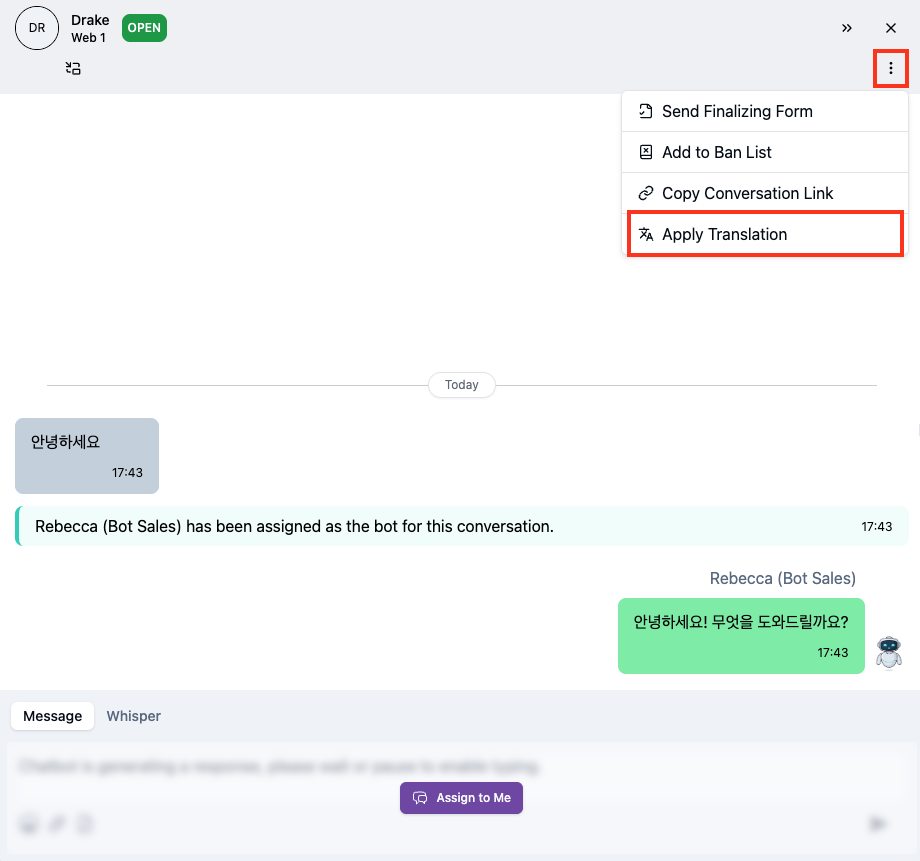
- Click the More menu (⋮) in the conversation area.
- Select Apply Translation.
Translating Customer Messages
Once translation is applied, messages from the customer are translated automatically. Each message shows the original text, followed by the translated text and a label indicating the source language (for example, Translated from Korean).
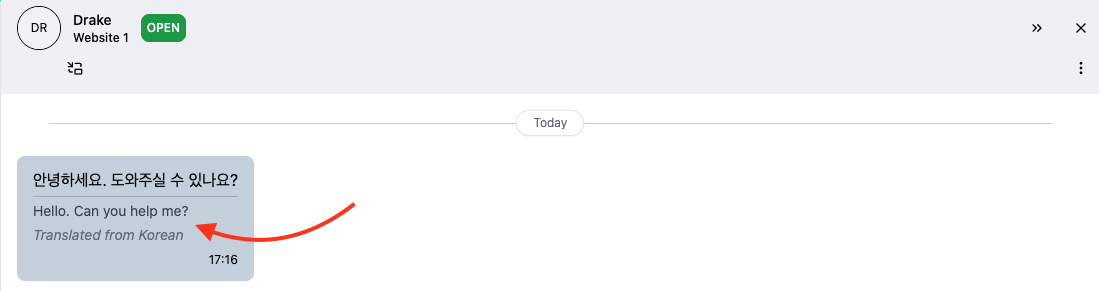
Applying translation only translates customer messages automatically. AI agent messages must be translated manually. See Translating AI Agent Messages.
Translating AI Agent Messages
You can also translate messages generated by the AI agent, one message at a time.
To translate an AI agent message:
-
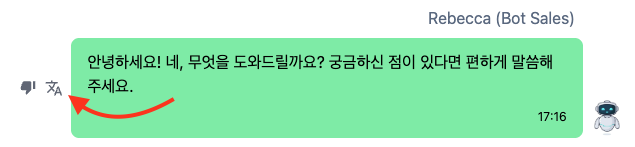
Hover over the AI agent message in the conversation area.
-
Click the Translate icon next to the message.
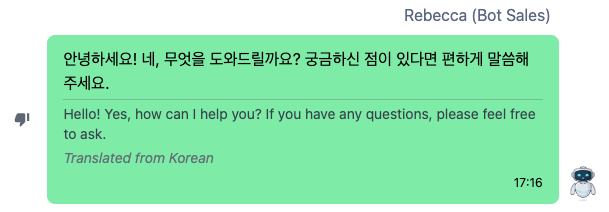
The translated text appears below the original message, along with a label indicating the source language.
Replying in the Customer's Language
When translation is applied and you have taken over the chat, a translation field appears above the message composer. Use it to reply to customers in their own language.
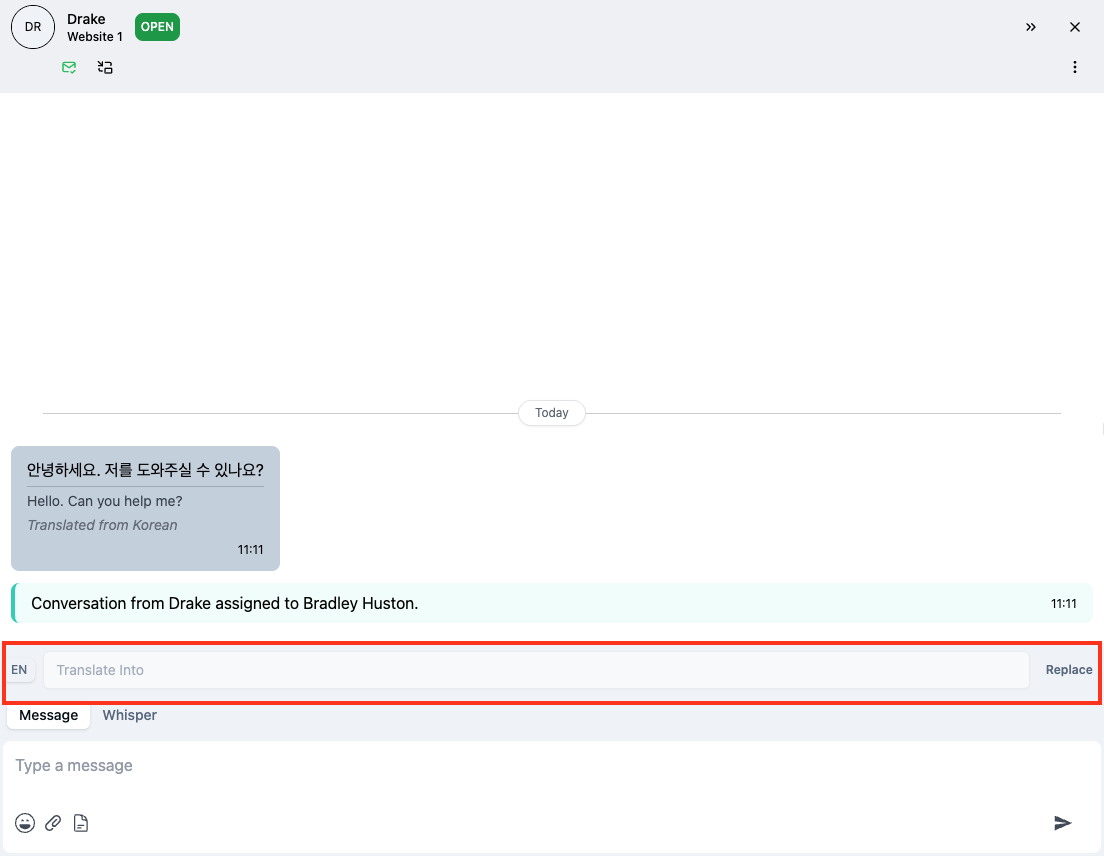
To translate your reply:
-
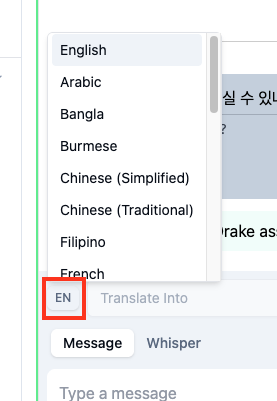
Click the language button (e.g. EN) and select the language that matches the customer's language.
-
Type your message in the composer. The translation is shown in the translation field.
-
Click Replace. The translation replaces your message in the composer, and the Replace button changes to Cancel.


-
Send the message as usual. To go back to your original message instead, click Cancel before sending.
Turning Off Translation
To turn off translation:
- Click the More menu (⋮) in the conversation area.
- Select Turn off Translation.
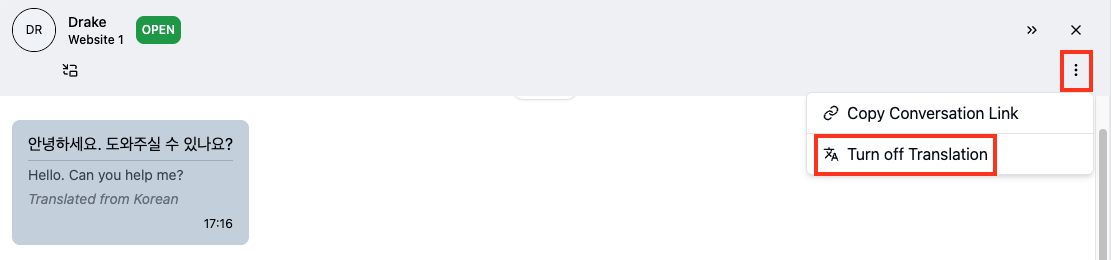
Once translation is turned off, messages from both the customer and the AI agent will no longer be translated.
Preferred Language
You can set your preferred language in your profile settings to choose which language messages are translated into when you apply translation.
To set your preferred language:
-
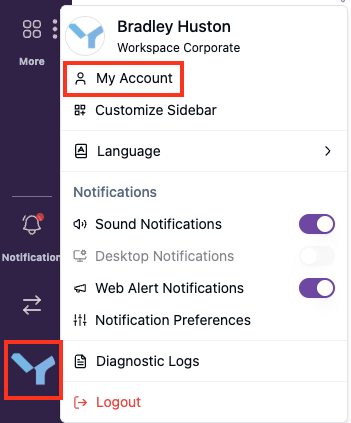
Click your profile avatar at the bottom of the sidebar, then select My Account.
-
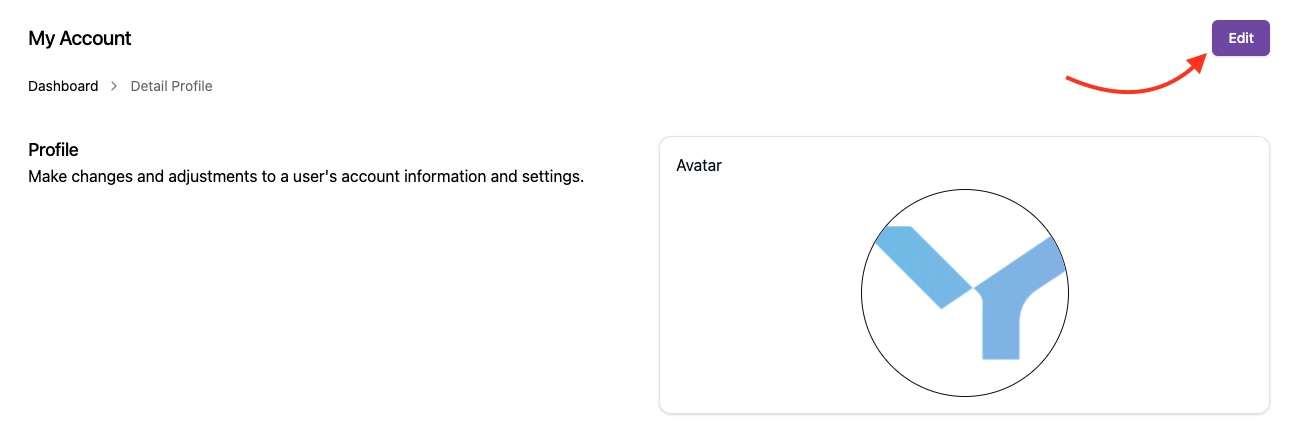
On the My Account page, click Edit.
-
In the Language Translation section, select your preferred language from the Translate Into dropdown.
-
Click Save.

