

Queue System
The Queue System lets you control how many active conversations each bot can handle at the same time. When a bot reaches its limit, new incoming conversations will be queued until a slot becomes available — preventing bots from being overloaded and ensuring response quality stays consistent.
You can access the Queue System from Settings → Chats → Queue System.
Bots Queue

Enable Queue System for Bots
Use the On/Off toggle to enable or disable the queue system for all bots in your workspace. When turned off, bots will handle incoming conversations without any limit applied.
Default Max. Active Chat for Bots
Set the default maximum number of active conversations each bot can handle at one time. This limit applies to all bots in that workspace unless overridden individually.
Example: Setting this to 100 means every bot in your workspace can handle up to 100 active conversations simultaneously by default. This also applies to the new bot that just created in your workspace.
Specific / Override Max. Conversation per Bot
If you need a specific bot to have a different limit than the default, you can override it here. It will be only applied to the specific selected bot, the other bots won't be affected.
- Click + Add Bots to select a bot from your workspace.
- Enter the Max. Active Conversation value for that bot.
- Click Save to apply the changes.
The override table shows the following:
| Column | Description |
|---|---|
| Bot Name | The name and version of the bot |
| Max. Active Conversation | The maximum number of simultaneous active conversations for this bot |
To remove an override and revert a bot back to the default limit, click the delete icon (🗑) on the right side of the bot row.
Changes only take effect after clicking Save. Make sure to save before leaving the page.
How Queued Conversations Work
When a bot has reached its maximum active conversation limit, any new incoming conversation will enter a queued state and wait until the bot has capacity to handle it.
Queued Status in the Dashboard

Queued conversations are clearly marked in the chat list and conversation header with a Queued badge. Agents can see these conversations and monitor which ones are waiting. The conversation will also show an announcement indicating which bot the visitor is waiting for — for example, "Waiting for Bot 'Cecil'".
Customer Notification
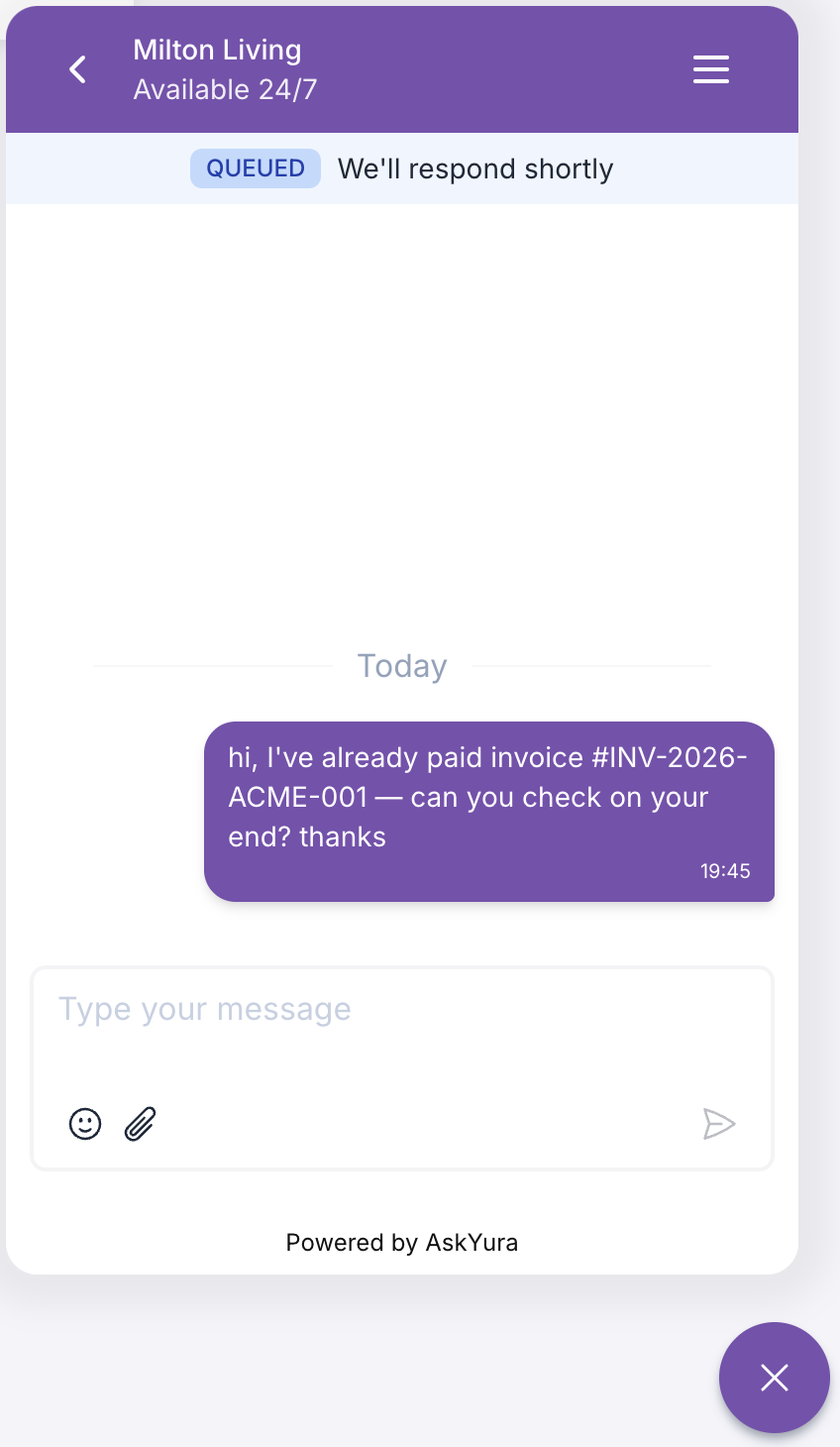
On the customer side, a Queued status banner is shown at the top of the chat widget with the message "We'll respond shortly" — so customers are informed that their message has been received and they are in line to be served.
Agents Queue
Queue management for human agents is currently under construction and will be available in a future update.
