

Labels
Labels in Askyura are used to organize and categorize information across the platform. They help teams maintain clarity, improve discoverability, and create better alignment between conversations, channels, automation, and AI-powered features.
You can access and manage labels from Settings → Label in the navigation bar.
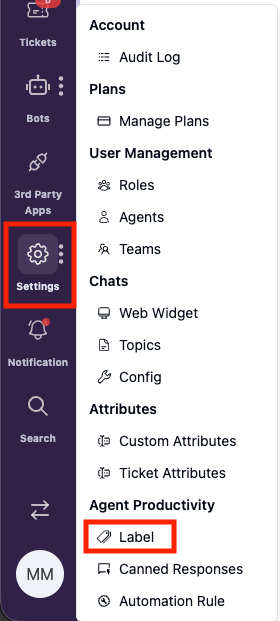
In Askyura, labels can be applied to contacts, conversations, channels, chatbots, and knowledge base. The sections below provide an overview of how labels function in each area.
Labels on Contacts

On contacts, labels are used to segment and group customers based on shared characteristics such as customer type, priority, or business context. This makes it easier to understand who your customers are and manage them at scale.
Labels on Conversations
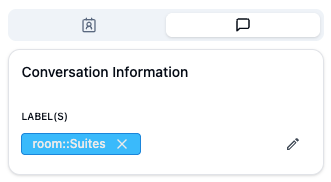
Labels on conversations provide quick context for agents by indicating the topic, priority, or nature of a chat. This helps teams understand conversations at a glance and manage ongoing or past conversations more efficiently.
Conversation labels can be assigned in the following ways:
- Manually by agents, when reviewing or handling a conversation
- Automatically by the chatbot, based on its configuration
(Refer to this guide for details.) - Automatically through automation rules, based on defined conditions
(Refer to this guide for details.)
Labels on Channels

Channels can be labeled to reflect their purpose or intended use. This helps teams differentiate communication sources and maintain better organization when working with multiple channels.
Channel labels can also be used as conditions in automation rules, allowing you to trigger actions based on the label assigned to a channel. For more details, refer to the automation rules guide.
Labels in Chatbot and Knowledge Base

Labels act as the bridge between the chatbot and the knowledge base in Askyura. A chatbot can only access and use knowledge base articles that share the same labels assigned to it.
By controlling which labels are linked to a chatbot, you can ensure that the bot responds using only relevant and approved knowledge base content. This improves response accuracy, maintains context, and prevents the chatbot from accessing unrelated information.
Tips for Creating Effective Labels
Well-structured labels help your team stay organized and make it easier to manage conversations, automation, and knowledge content over time. Consider the following tips when creating and maintaining labels.
Be Descriptive
Use clear and concise names so labels are easy to understand at a glance. Avoid vague or generic names that don't communicate purpose.
Example:
Instead of using a label like "Miscellaneous", use more specific names such as "Urgent Support", "Billing Issues", or "Product Feedback."
Use Color Coding
Assign distinct colors to labels to make them easier to identify visually. Consistent color usage can help agents quickly recognize priorities or statuses.
Example:
Use red for "Urgent Support", green for "Resolved", and blue for "In Progress."
Review Labels Regularly
Periodically review your labels to ensure they remain relevant and useful. Remove outdated labels and update them as your workflows evolve.
Example:
Set a monthly reminder to review your labels. Remove outdated labels like "Promo Campaign June 2023" and add new ones such as "Holiday Season 2024."
